What your renters see
What happens on the renter’s side, from checkout to getting their deposit back: the pages and messages they get, and what they can do themselves so they don’t have to message you.
- Where
- Your booking site
- Who can use it
- Renters, and anyone you send a payment link or quote to. Nothing here needs a staff login.
- Plans
- Every plan.
- Checked
- Sep 25, 2026
- How much to pay now
- Payment method
- Pay
What you can do
- Sign in with just their email and a 6-digit code. No password.
- Verify their licence once, then pay by GCash, Maya, card, QR Ph or over the counter.
- Sign the rental agreement and confirm the pickup photos on their phone.
- Follow their deposit, change dates, extend, cancel, or ask for help from their booking page.
- Carry checkpoint documents with a QR an officer can scan.
- Pay a payment link or accept a company quote you sent them.
How it works
- Renters get a booking confirmation by email and SMS, a “Pickup tomorrow” reminder, and updates about charges, refunds and their deposit. You can read every one in Sent messages.
- Their booking lives in My account (all bookings, alerts, licence status, personal data requests) and My trips (upcoming trips, works without signal).
Checkout
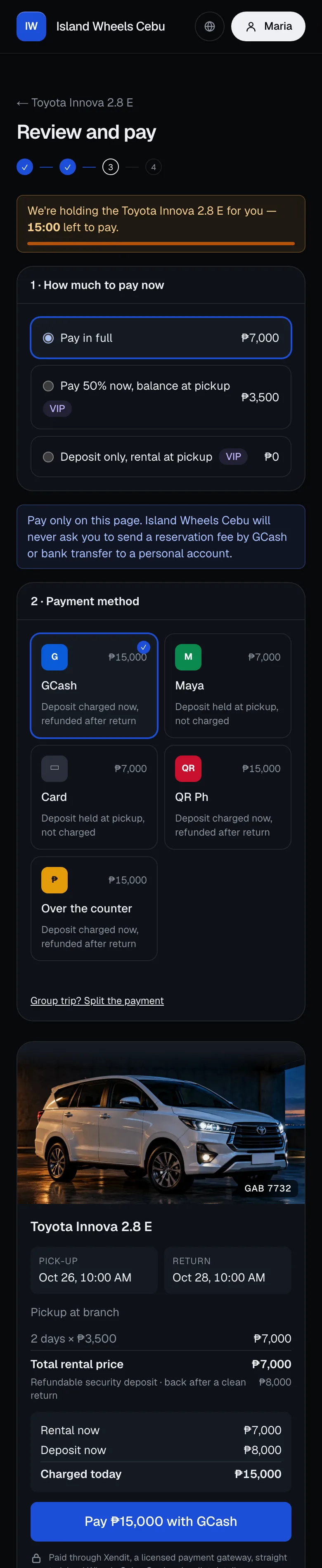
After Continue on a vehicle page, renters who aren’t signed in type their email and get a 6-digit code (new renters add their full name as on the licence and a mobile number). Then Review and pay shows:
- A countdown: the vehicle is held for your Checkout hold time (15 minutes by default). If it runs out, the vehicle is released and they pick dates again.
- Verify your licence (first booking only): a photo of the licence front, a selfie, licence number, expiry and restriction codes, plus an optional proof of billing on a first booking. They can share the eLicense QR from the LTMS app for faster approval. If documents are still being checked, they can still pay; your staff approve before pickup.
- How much to pay now: Pay in full, Pay 50% now, balance at pickup or Deposit only, rental at pickup. The last two are only for customers you’ve marked Trusted or VIP. Pay-now (prepaid) rates are always paid in full.
- Payment method: GCash, Maya, Card, QR Ph or Over the counter. With a card or Maya, the deposit is held at pickup (reserved, not taken). With the others, the deposit is paid now and refunded after the return. The summary shows exactly what’s charged today.
- Group trip? Split the payment: 2–10 people each pay their share from an email link. The hold stretches to 60 minutes and the booking confirms when everyone has paid.
- Your cancellation terms, and, if you made the promise, a note to pay only on this page.
After paying, they land on their booking with “You’re booked … Salamat po!” and the next steps: verify the licence if needed, what to bring to pickup, signing at pickup, and returning with the same fuel. They can add the trip to their home screen.
Their booking page
Everything about one booking, in the order they’ll need it:
- Status (Confirmed, On rent, Returned…), the booking code and dates.
- Typhoon notice: if CeeRent’s team raises a PAGASA wind signal for their pickup area and your Typhoon rule is on, they can move their dates for free with Change dates or press Cancel with full refund.
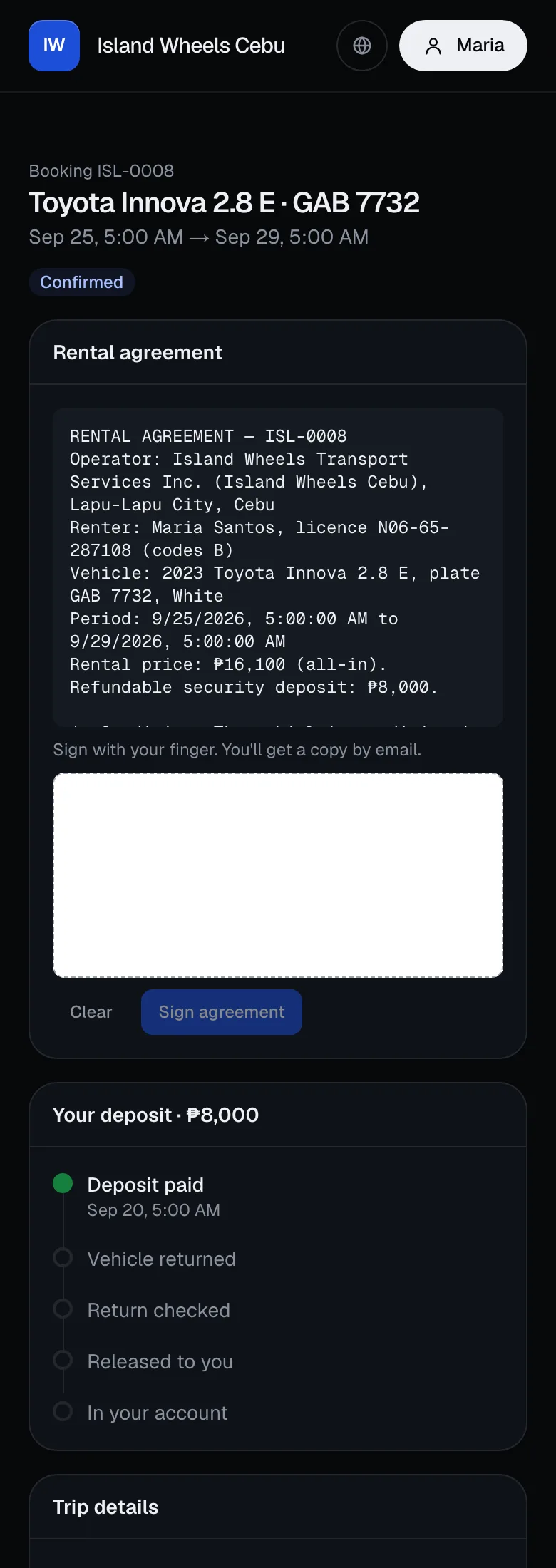
- Rental agreement: from 24 hours before pickup they can read it and sign with a finger. A copy is emailed. Later changes (like an extension) are added as addenda.
- Confirm the pickup check: after your staff photograph the vehicle, the renter sees the photos, fuel and odometer, and presses Everything matches — start my rental or adds a note about anything they spot.
- Self pickup, if you use lockboxes: from 30 minutes before pickup they take the photos and a live selfie, then get a one-time lockbox code. Returning works the same way with Return by lockbox.
- Your deposit: a step-by-step tracker (paid or held, vehicle returned, return checked, released, back in their account) with a countdown to your release promise and how long the money takes to land for their payment method.
- Proposed charges: after a return with charges, they see each item, the pickup and return photos side by side, how much comes out of the deposit, and a countdown to accept or dispute. Dispute lets them explain and add a photo.
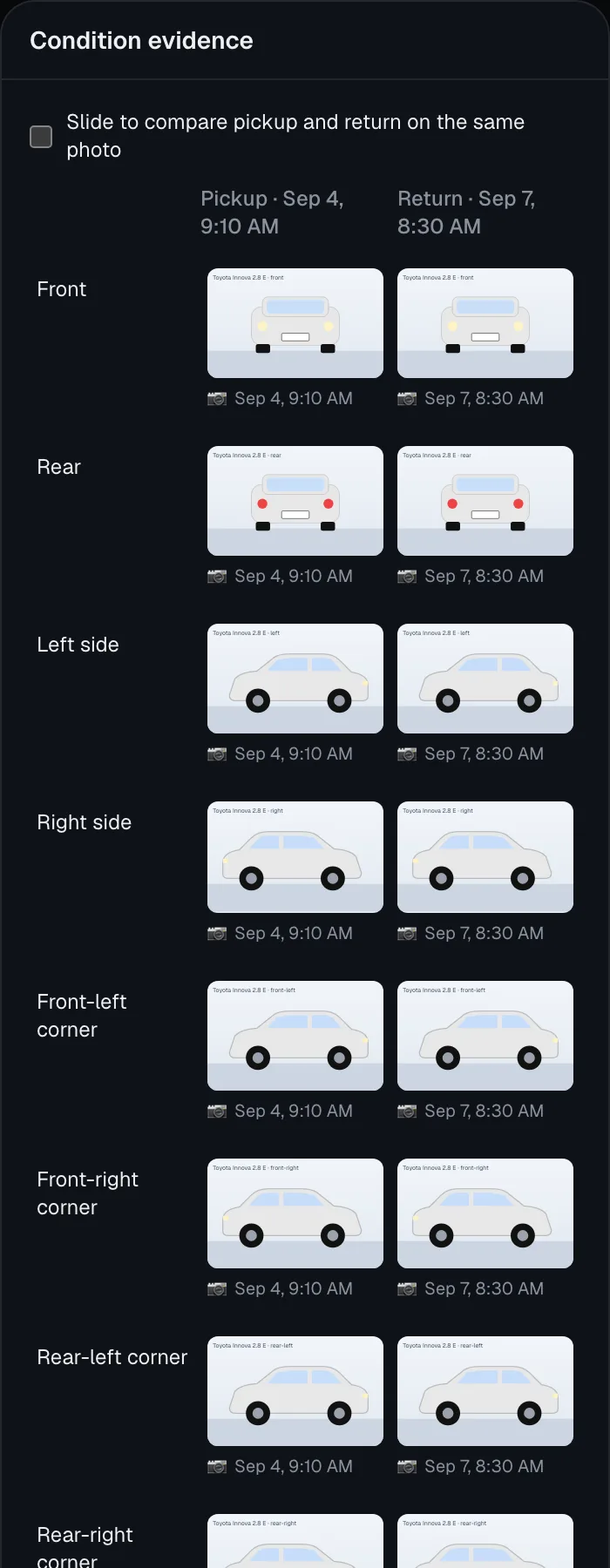
- Condition evidence: pickup and return photos for every angle, with the time each was taken, a slider to compare the same angle, and any walkaround videos.
- Trip details and price: pickup method, return branch, amount paid, balance due, deposit status, and the coding days on their dates.
- Buttons: Change dates and Cancel booking before pickup (each shows the price difference or refund first, under the policy saved when they booked); Extend rental while on rent (if the vehicle is free after them); 🆘 Help sends you their location and what happened; Report an accident with a photo and police blotter number.
- After the trip, a request for a review, plus their Refunds and the booking History.
My account and My trips
My account lists every booking (upcoming and past), their price alerts and waitlists, their licence status (a renter already verified with another CeeRent operator can agree to share that verification with you instead of uploading again), whether they want unfinished-booking reminders, and Make a request to see, correct or delete their personal data (you get the request).
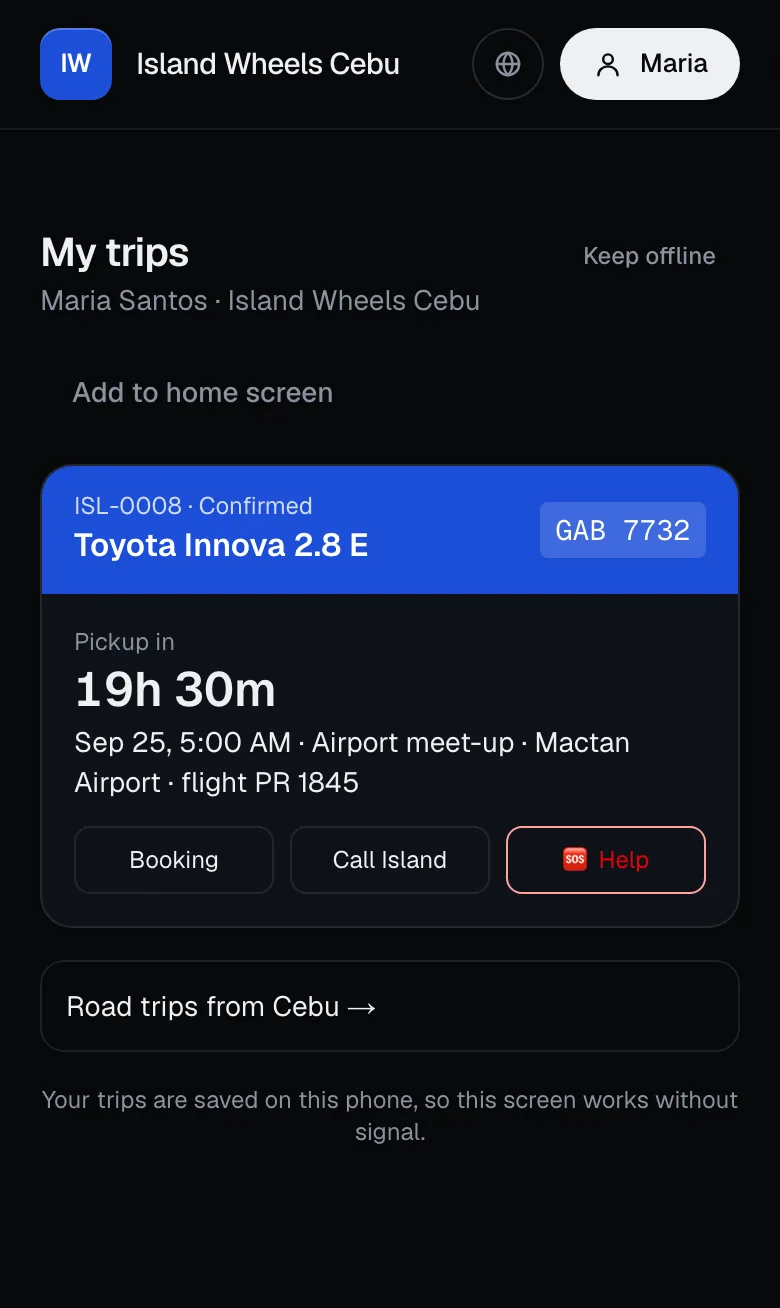
My trips is made for the phone: for each trip, a countdown to pickup (with directions) or to return, the lockbox code if any, checkpoint documents, and buttons for the booking, calling you and 🆘 Help. Keep offline saves trips, documents and road-trip guides so they open without signal once the site is added to the home screen.
Checkpoint documents and the QR check
Once the agreement is signed, the booking shows Documents for checkpoints. It’s one screen the renter can show at an LTO, HPG or PNP checkpoint, or save as a PDF before driving:
- A letter of authority from your registered business, naming the renter, the vehicle (plate, engine and chassis numbers) and the rental period.
- Registration (OR/CR numbers and expiry, or a note that the original is in the glove box), insurance, the signed agreement and your phone number.
- A QR code. When an officer scans it, a ceerent.com page shows a clear status (VALID RENTAL, BOOKED — NOT YET PICKED UP, OVERDUE — PAST RETURN TIME or RENTAL ENDED) with the plate, vehicle, the renter’s initials and last four licence digits, self-drive or with driver, and your business and phone. Nothing more personal is shown.
Payment links, company quotes and the widget
- Payment links you send from Payment links open a page on ceerent.com with your name, logo colour and badge, what it’s for, the amount, the renter’s name and a countdown. They pay by the methods you allowed; QR Ph shows a code any bank or e-wallet app can scan. Paid, cancelled and expired links say so. The page warns renters not to pay requests in your name from any other address.
- Company quotes from Corporate & quotes open a page with the vehicle, dates and price. The client fills in Who will drive? and presses Accept quote. Company accounts are billed on their payment terms with no deposit; others go on to pay online, and the vehicle is held for 24 hours. The driver uploads their licence before pickup.
- The widget on your own website (see Website & widget) shows dates, your vehicles and the all-in price. Book opens that vehicle on your booking site with the dates filled in.
Watchlist appeals
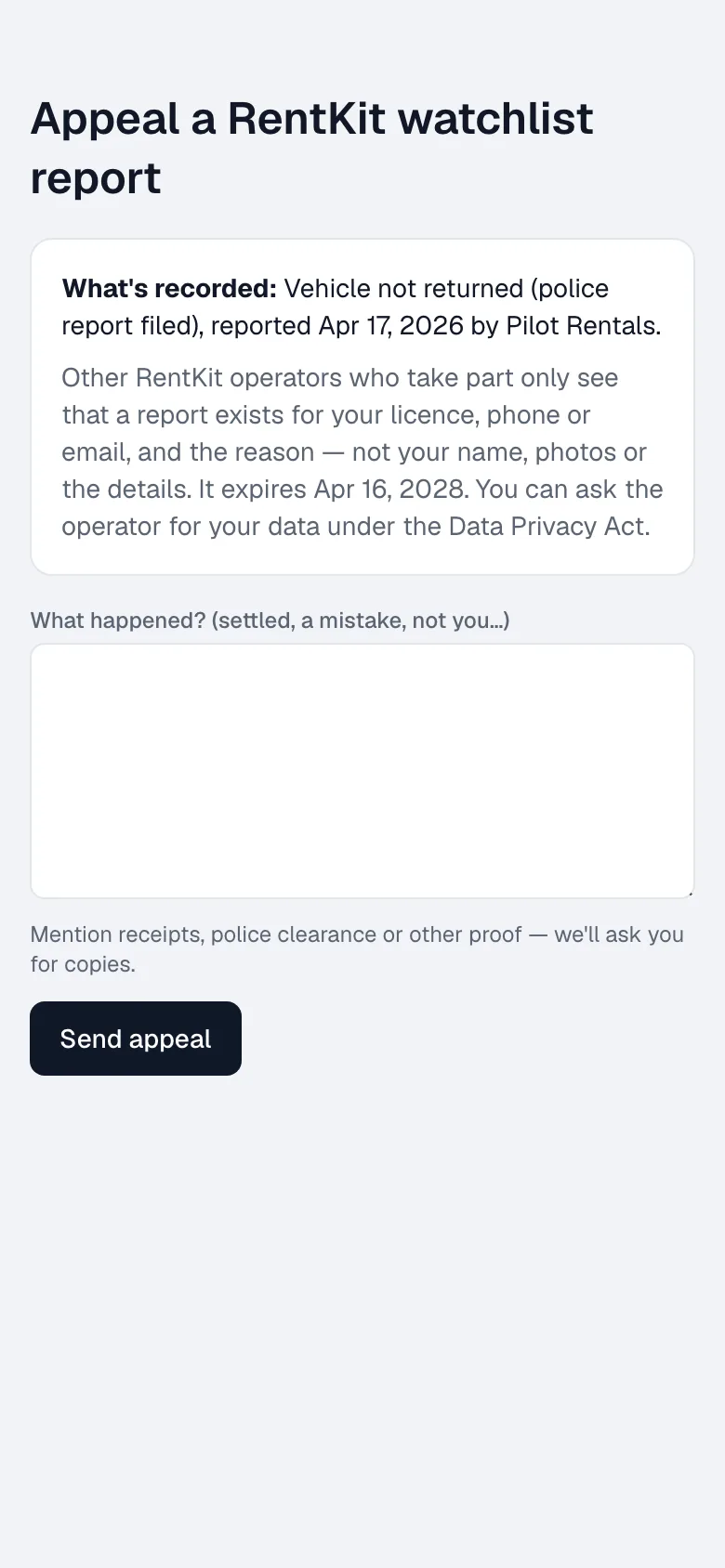
If you take part in the shared renter watchlist and report a renter, they get a message with the reason and an appeal link. The appeal page shows only what’s recorded (the reason, the date and who reported it) and explains that other operators see just that a report exists and why. Reports expire after two years. The renter writes what happened and sends it to CeeRent’s team, who review every appeal. Turn the watchlist on in Settings → Policies.
- Rental agreement
- Your deposit
- Slide to compare
- Pickup in
- Keep offline
Still not sure how it works?
Ask a person, in Filipino or English — Mon–Sat, 8:00–20:00 PHT.