Your first pickup, step by step
Approve the renter's licence, collect what's owed, get the agreement signed, photograph the vehicle and hand over the keys — with a record you and the renter both agreed to.
- Time
- 12 min · 8 steps
- Plans
- Every plan.
- Where
- Bookings → the booking → Start pickup
- Checked
- Sep 25, 2026
Approve the renter's licence and selfie
On their first booking with you, renters upload a photo of their driver’s licence, a selfie, the licence number, expiry date and restriction codes — at checkout or later from their booking page. You get a “Verify …” notice and it shows in Today → Needs attention.
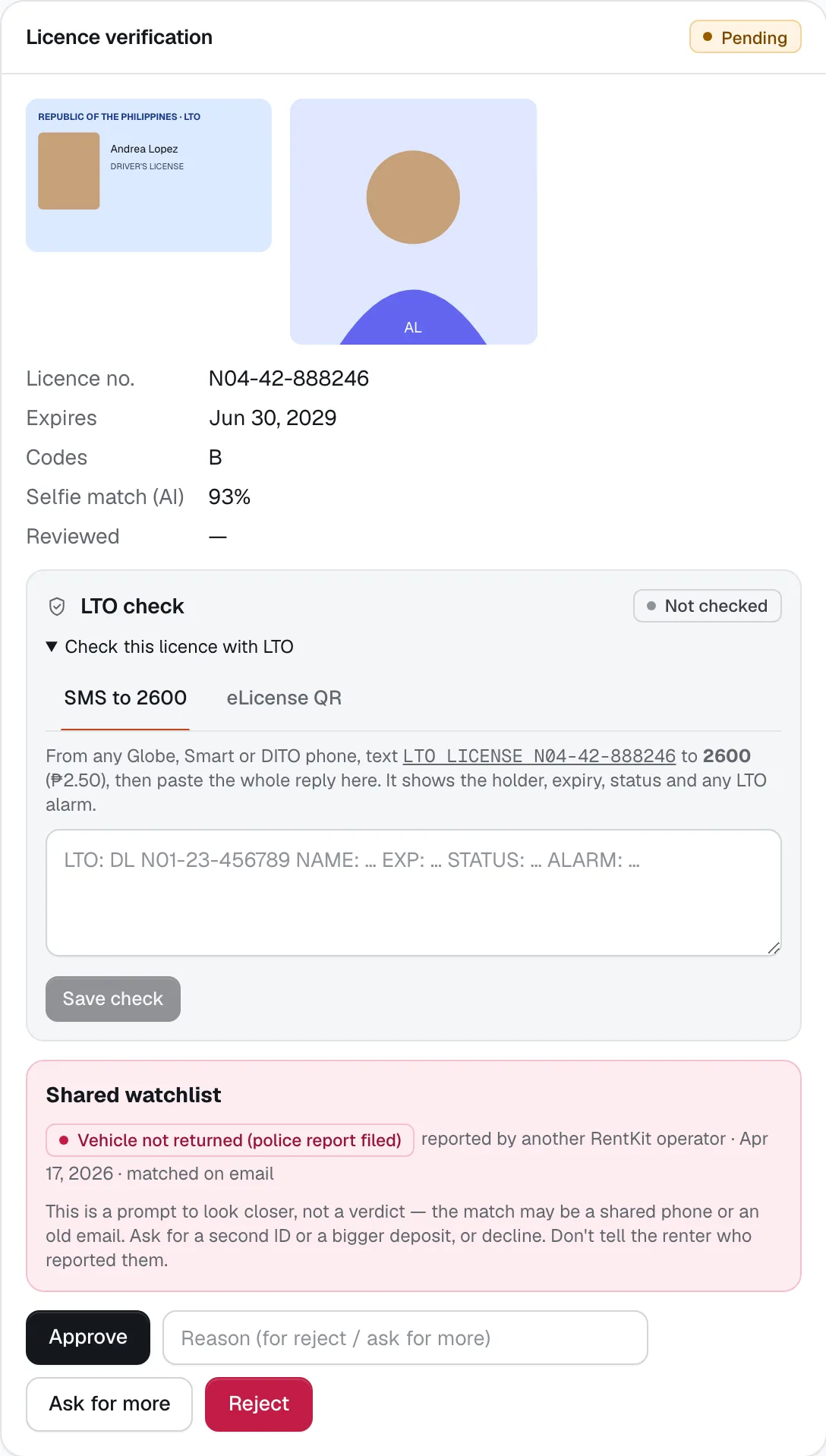
Open Customers → the renter → Licence verification. Compare the photos and check Selfie match (AI), then:
- Approve — they won’t be asked again with you.
- Ask for more — type a reason first (e.g. “Licence photo is blurry, please retake”). They see it on their booking page.
- Reject — needs a reason too. Their upcoming bookings with you are cancelled with a full refund.
You can also check the licence with LTO from the same card (text to 2600, or the eLicense QR). See Customers.
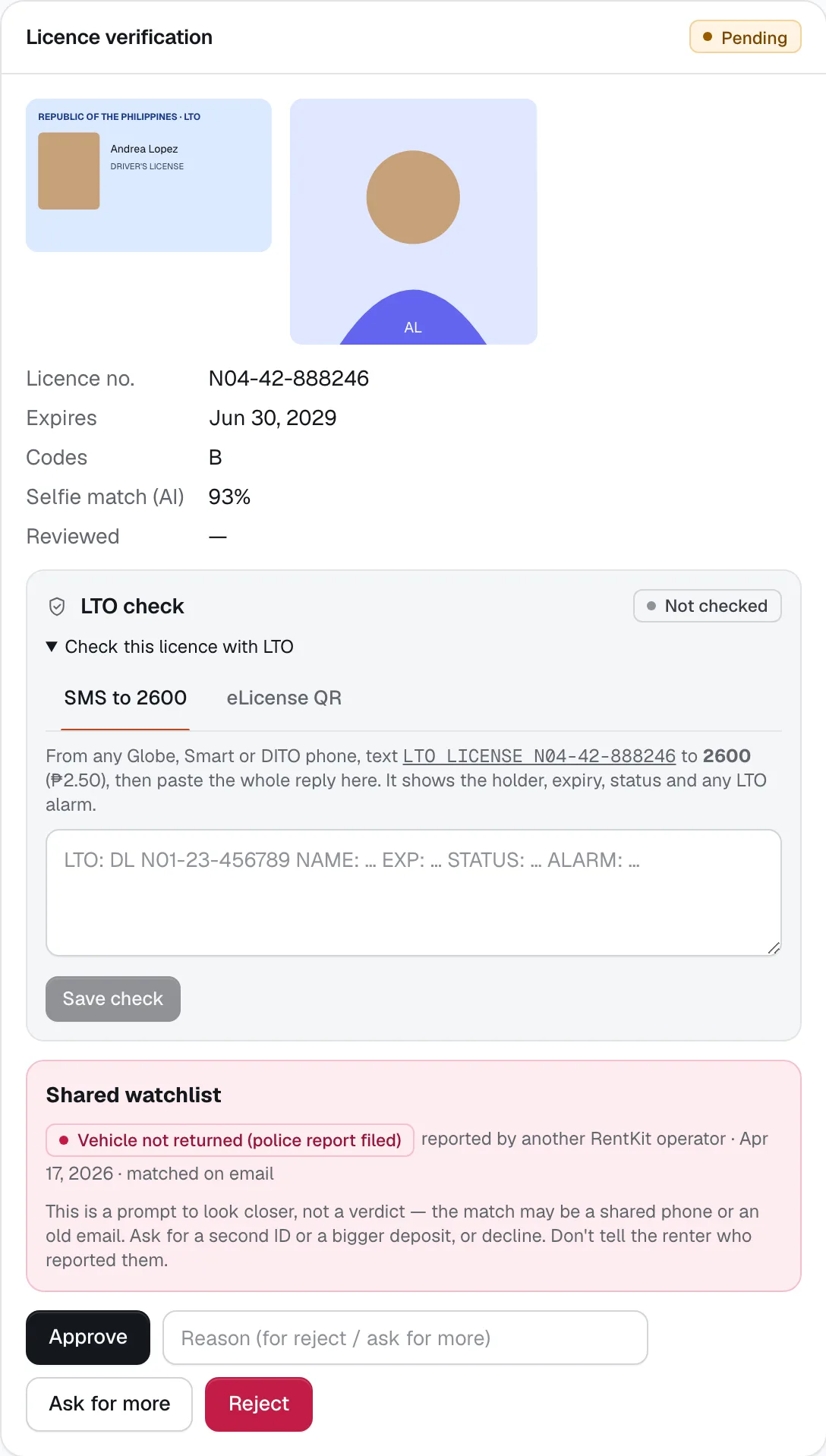
- Selfie match (AI)
- Approve
- Ask for more
- Reject
Open the booking and start the check
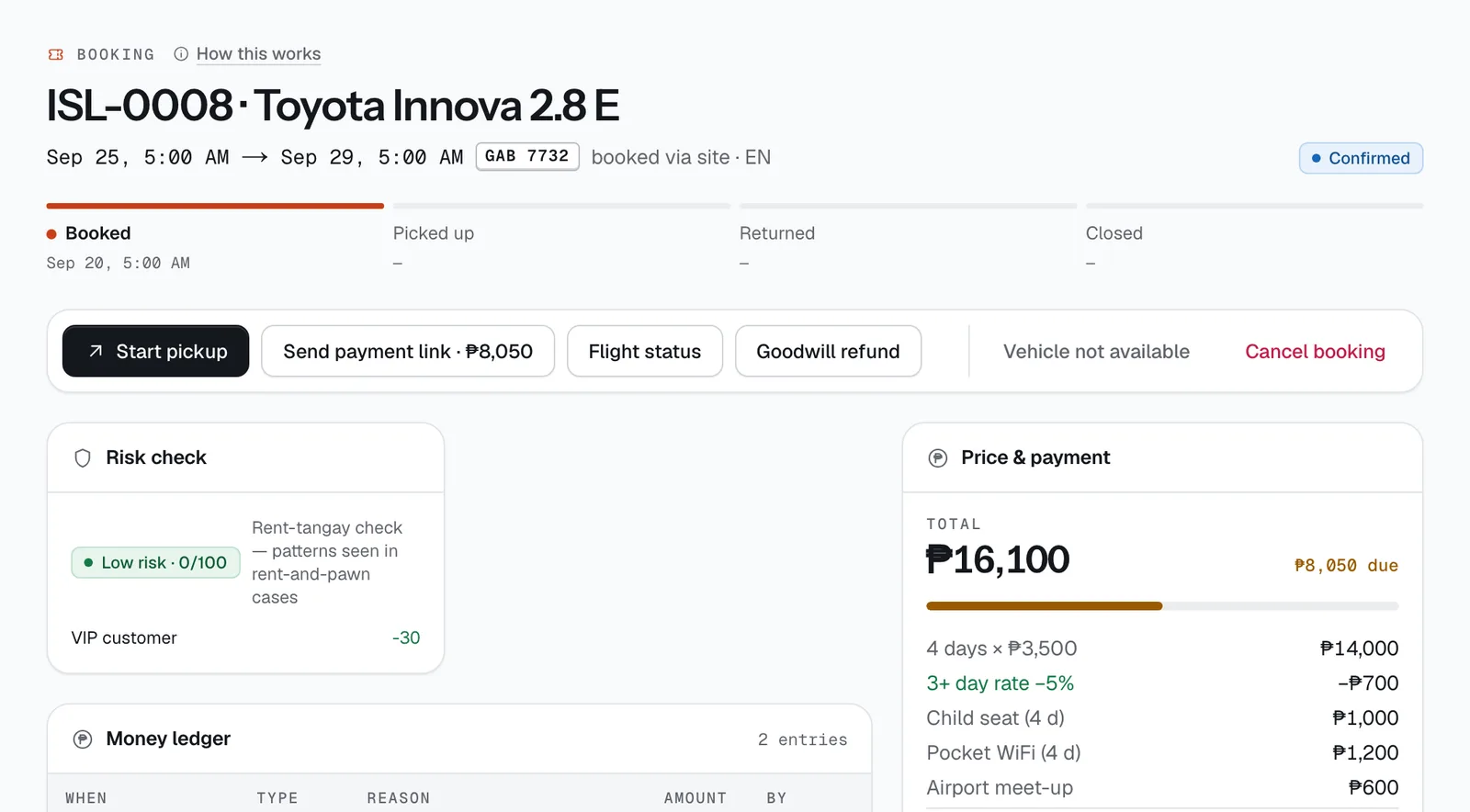
Open the booking from Today or Bookings and tap Start pickup. The check is built for a phone — do it standing next to the vehicle. If you leave and come back, the button says Continue pickup check.
Field staff and drivers start from My schedule; they only see pickups at their branches or trips assigned to them.
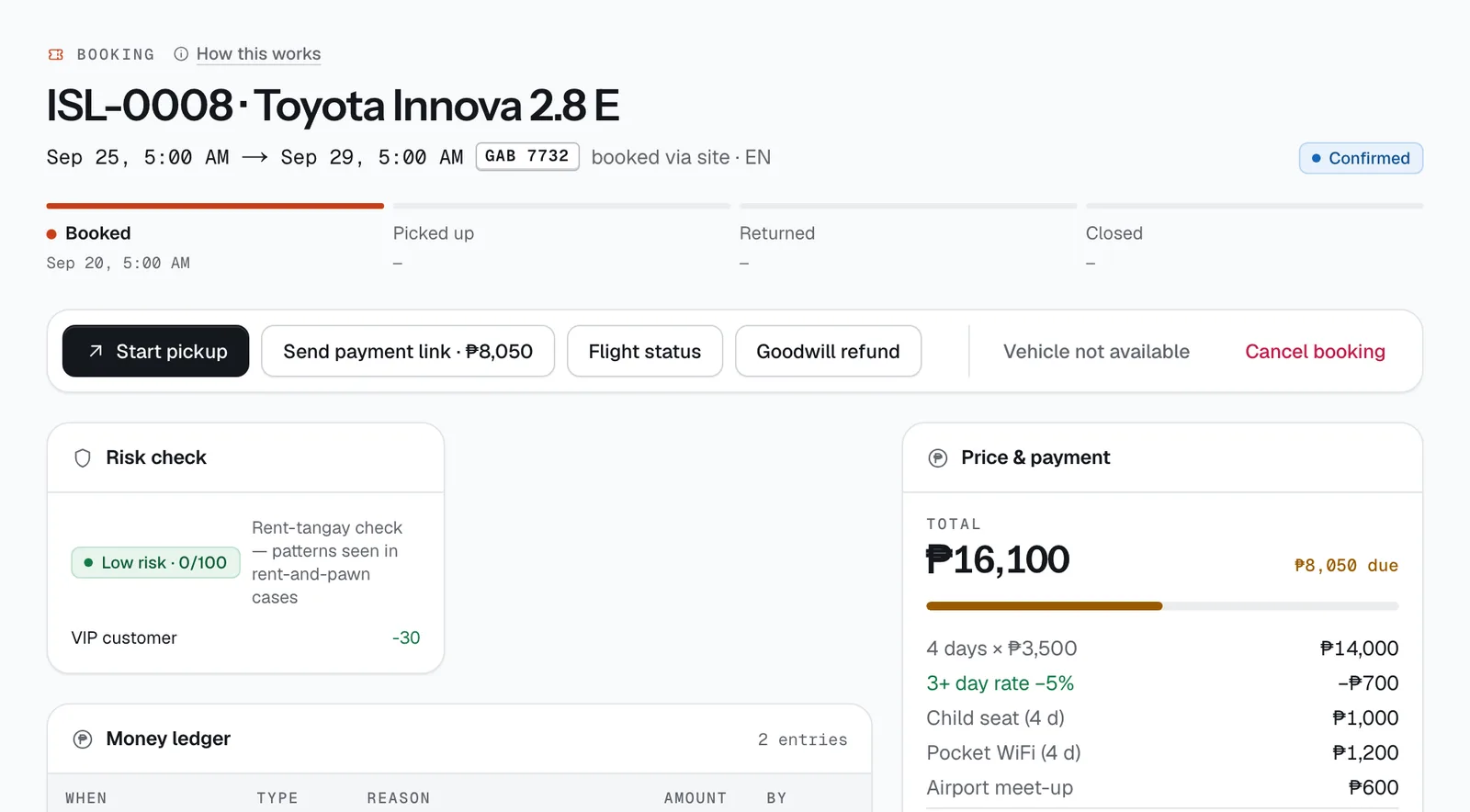
- Start pickup
- Send payment link
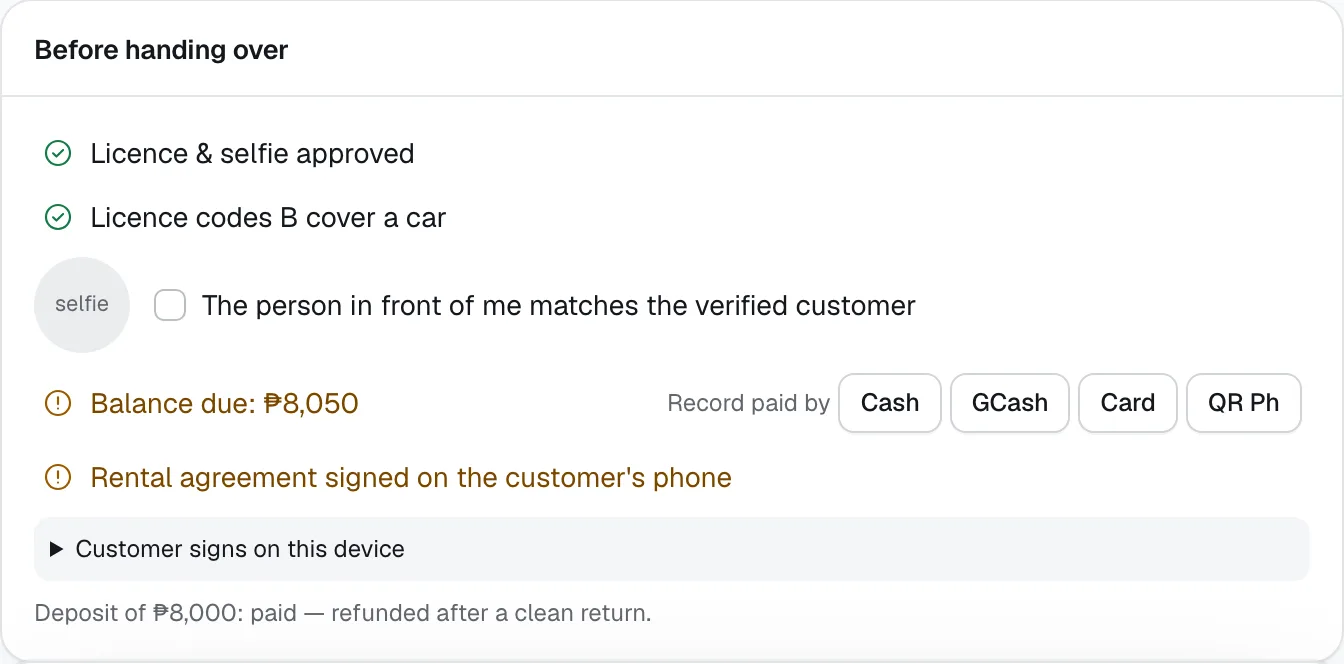
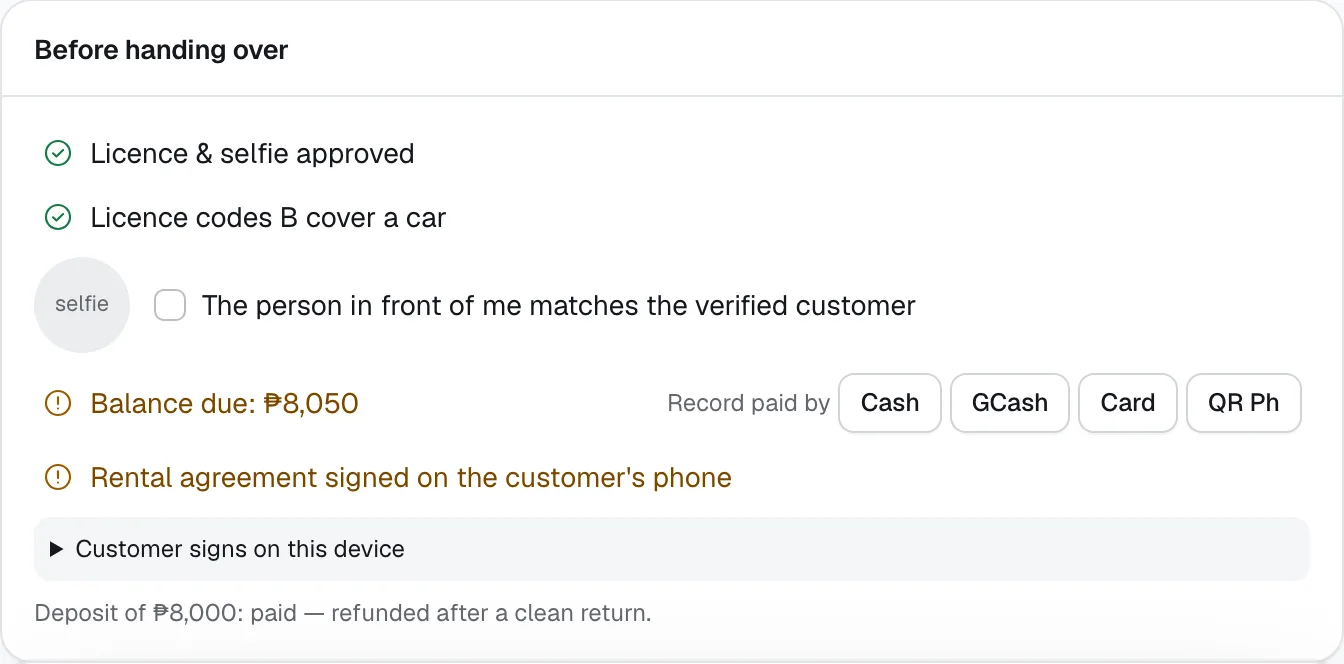
Go through Before handing over
This list tells you what’s missing before the keys can go out:
- Licence & selfie approved, and the licence codes cover this vehicle (B for cars, A for motorcycles).
- Tick The person in front of me matches the verified customer — their selfie is shown beside it.
- Paid in full, or a balance to collect (next step).
- Rental agreement signed on the customer’s phone (step 5).
- Sometimes High-risk booking — one extra safeguard needed: record a second ID, an extra deposit or a manager’s approval, then Save safeguard.
If cleaning or checks from the last rental are still open, you’ll see a warning with a link to Turnaround. It doesn’t block the pickup.
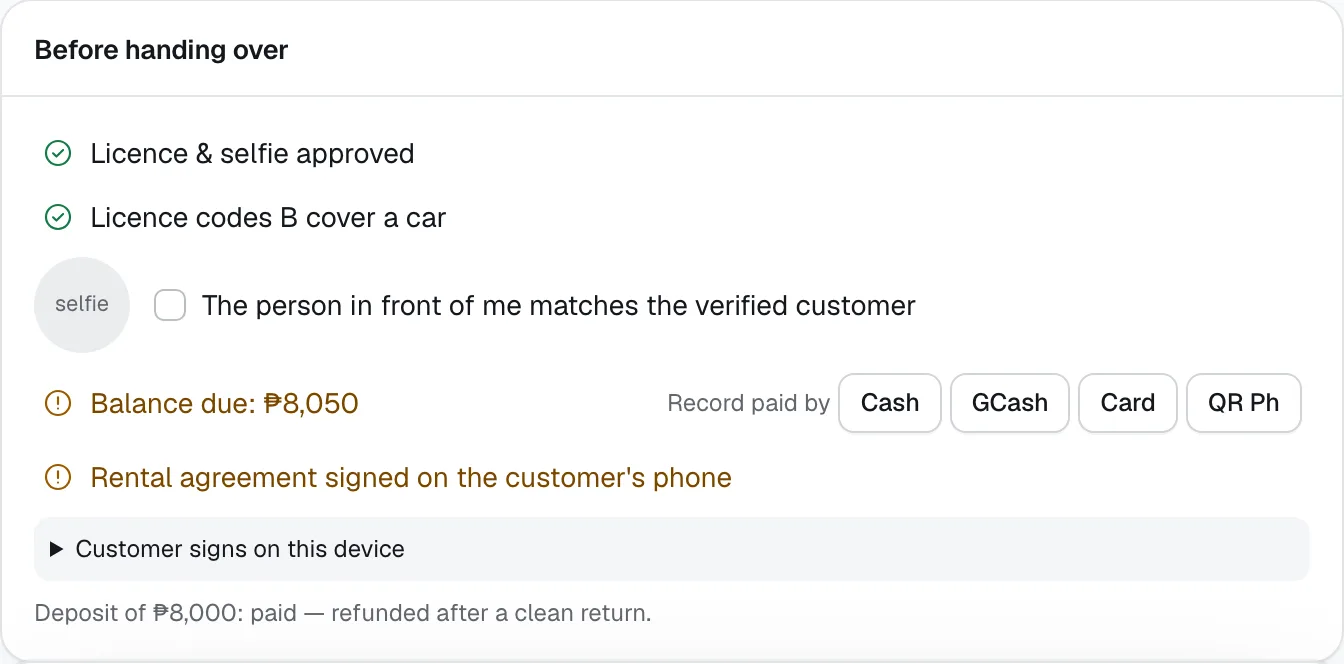
- Licence & selfie
- Identity check
- Signed agreement
- Customer signs on this device
Get the agreement signed
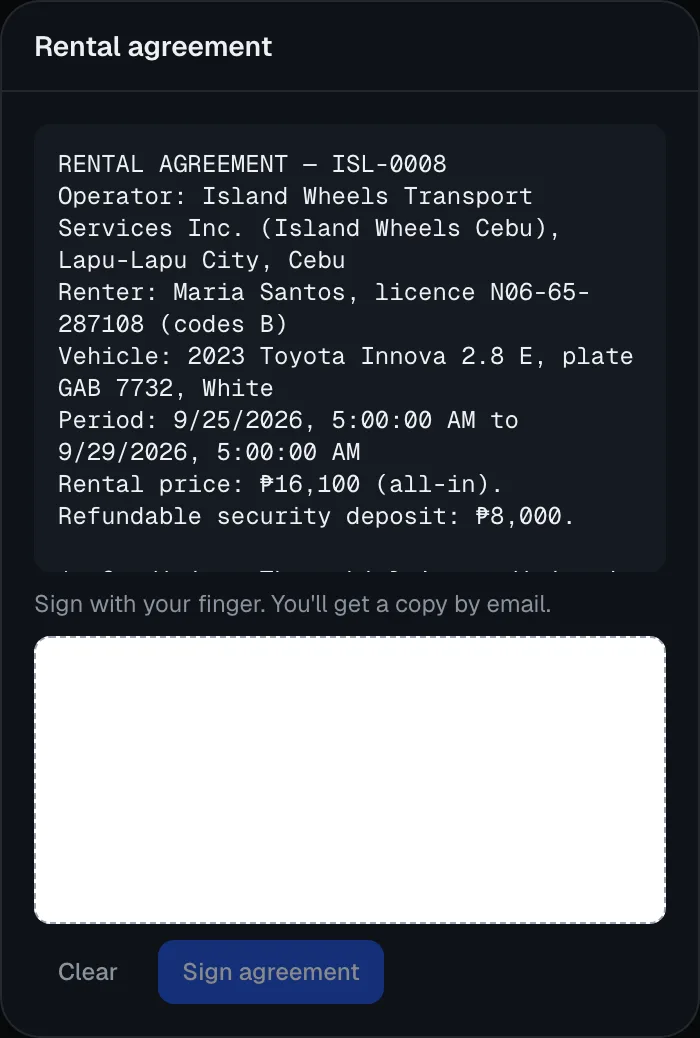
From 24 hours before pickup, the renter’s booking page shows the Rental agreement. They read it, sign with a finger and tap Sign agreement; a copy goes to their email.
No phone or no signal? In the check, open Customer signs on this device and let them sign on yours.
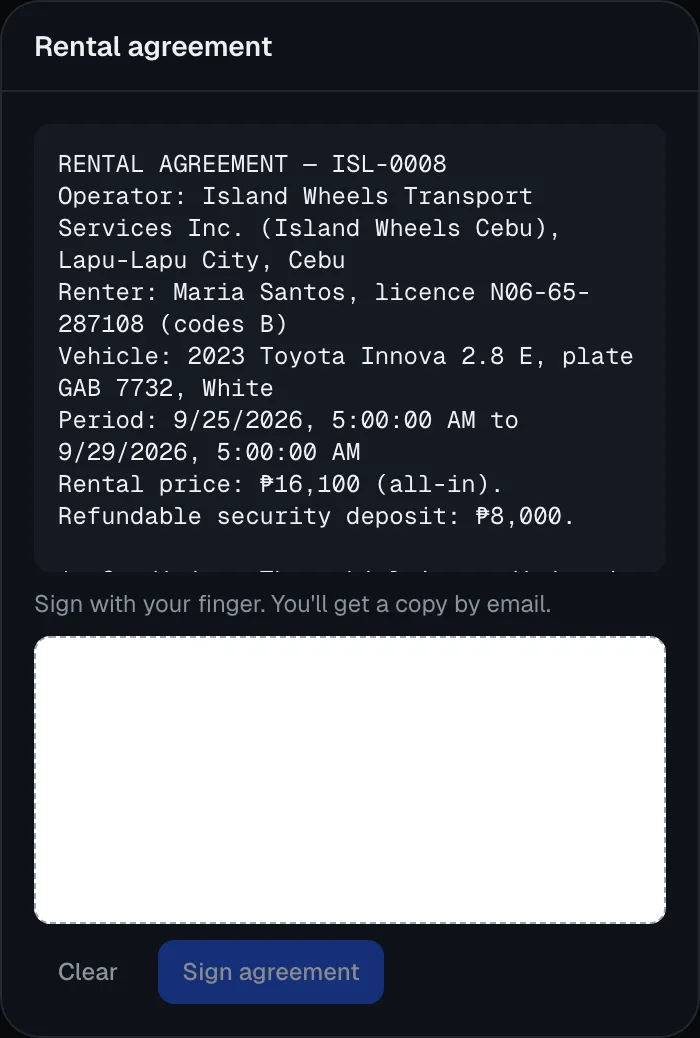
- Sign here
- Sign agreement
Take the guided photos
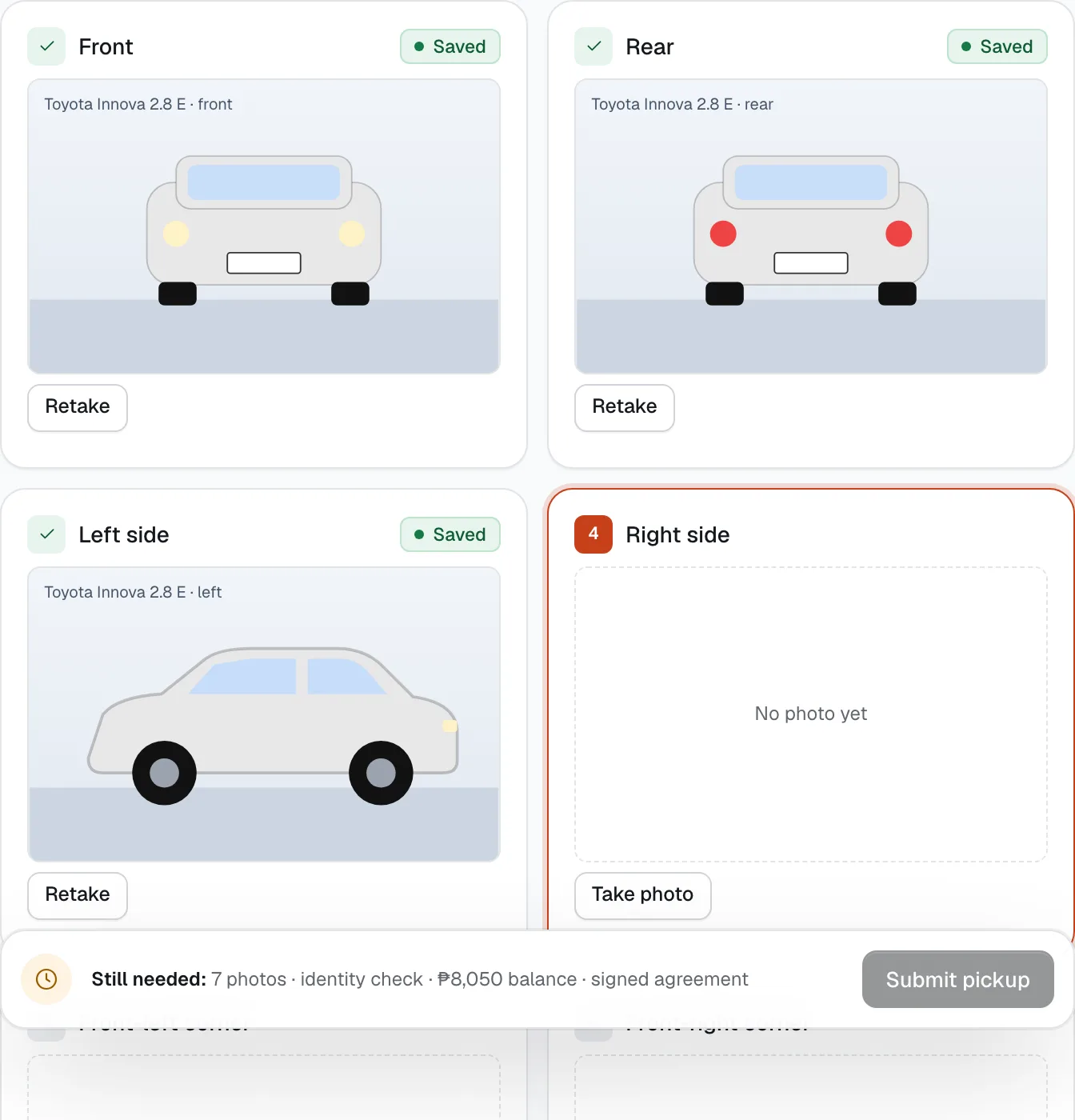
Each angle has its own slot, and the next one is highlighted. Cars need 10: front, rear, both sides, the four corners, interior, and the dashboard showing fuel and odometer. Motorcycles need 5: front, rear, both sides and the dashboard.
Every photo keeps the time it was taken and shows Saved. No signal? Tick No signal (offline mode) — photos keep their capture time and upload later.
You can also record a Walkaround video: one slow lap, at least 30 seconds for a car or 15 for a motorcycle. With a video, the four corner photos become optional on cars. You can make the video required, or turn it off, in Settings → Policies.
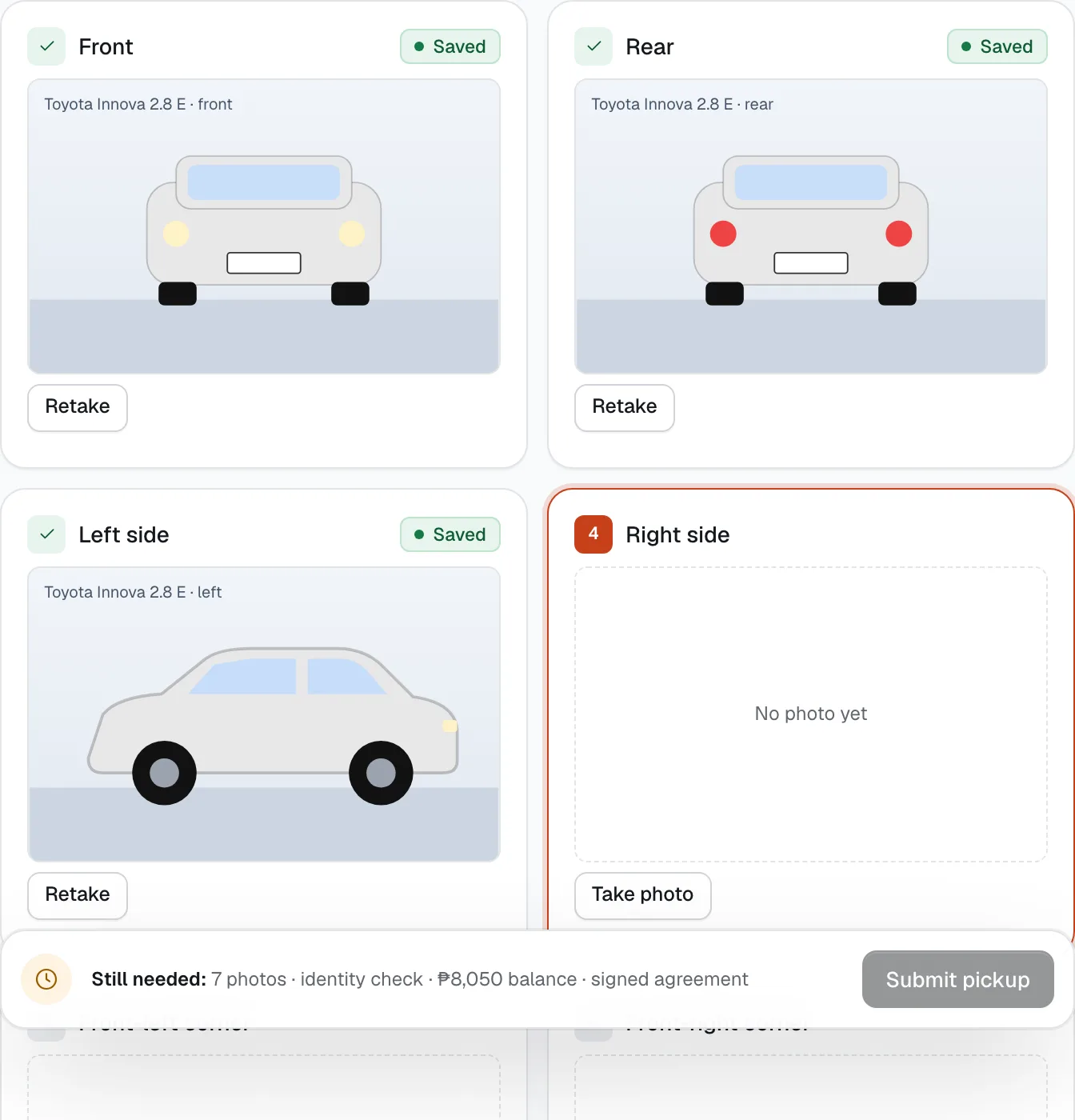
- Saved with its time
- Next photo: Take photo
Record fuel and odometer
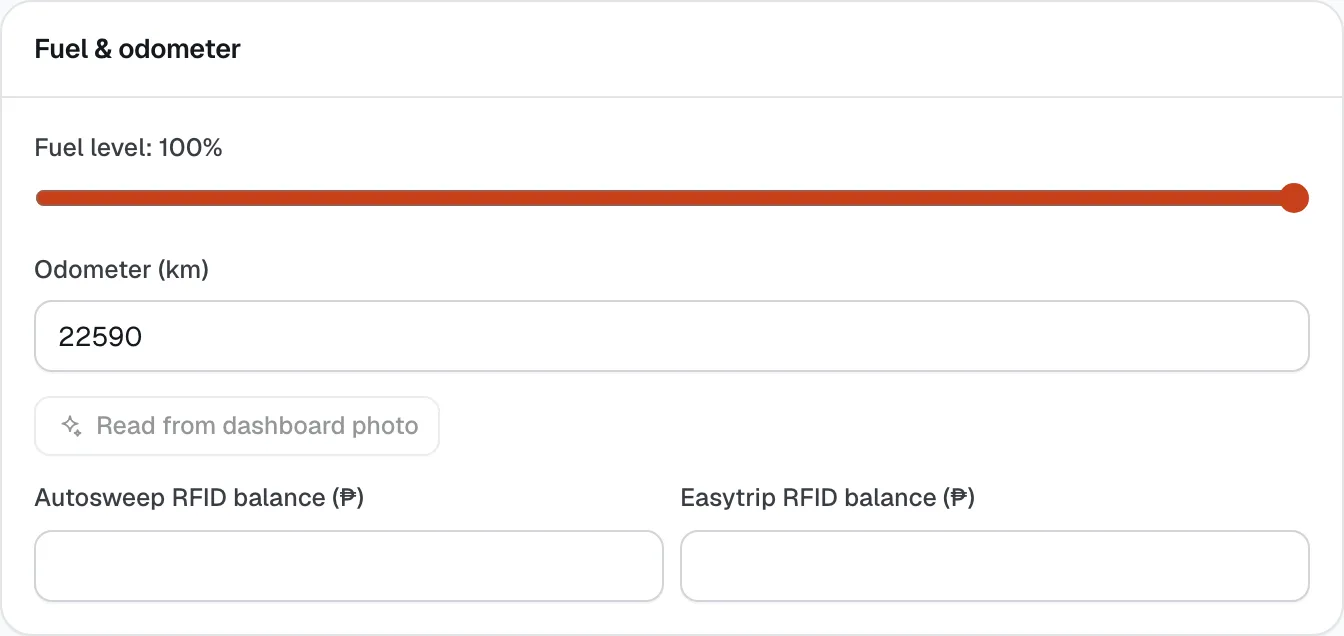
Tap the fuel level the gauge shows (or the charge, for an electric vehicle) and type the Odometer (km) — both start blank, and the pickup can't be submitted until you've recorded them, because the return is compared with them. Or tap Read from dashboard photo and Confirm the reading. For cars, enter the Autosweep RFID balance and Easytrip RFID balance — at the return, CeeRent charges only the tolls used on the cards read at both ends.
If add-ons were booked (helmet, child seat, pocket Wi-Fi), set how many you handed over. Add anything worth remembering under Notes.
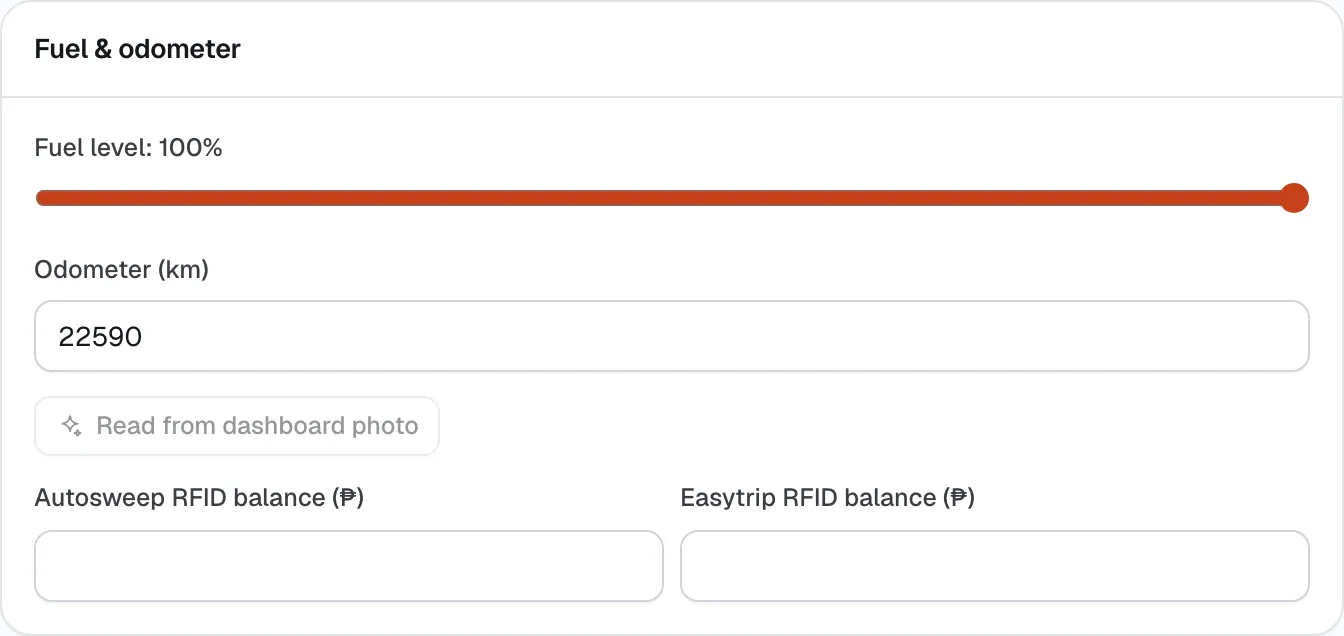
- Fuel level
- Odometer (km)
- Read from dashboard photo
- RFID balances
Submit and let the renter confirm
The bar at the bottom lists what’s Still needed. When it says “All done”, tap Submit pickup. The photos are locked, and a card or Maya deposit is held now.
The renter gets a message to check the photos on their phone and tap Everything matches — start my rental, or add a note about anything they see. The rental starts when they confirm. If they’re confirming on your phone, tap Customer confirms on this device.

- Still needed
- Submit pickup

Good to know
- Submit stays blocked until every photo is in, the licence is approved and covers the vehicle, you’ve confirmed who they are, the balance is paid and the agreement is signed. That’s on purpose: it’s your evidence if anything goes wrong.
- Photos can’t be changed after you submit. If the renter flags something at pickup, it’s saved with the check and shows on the booking.
- A card hold lasts about a week. If the rental is longer, CeeRent takes the deposit at pickup instead and refunds it after the return.
- Late-night arrivals can pick up from a key lockbox after doing the photo check and a live selfie on their own phone — set it up in Settings → Branches. See Handover check.
Stuck on a step?
A person answers, in Filipino or English — Mon–Sat, 8:00–20:00 PHT.
- Returns, deposits and damage claimsCheck the vehicle back in, let CeeRent work out fuel, mileage, late and toll charges, release clean deposits at once, and handle damage with evidence the renter can see.12 min
- Get paid: online, by link and at the counterConnect your Xendit account, let renters pay by GCash, Maya, card, QR Ph or over the counter, take chat and phone bookings with a payment link, collect the rest at the desk and send refunds.15 min
- Set up your teamGive each person the right role, licence and branches, set refund limits, keep sign-in safe, and switch access off the day someone leaves.10 min