Bookings
Every reservation in one list, and the page for each booking where you take payment, start the handover and deal with anything that goes wrong — from a late flight to a car that doesn’t come back.
- Where
- Operate → Bookings
- Who can use it
- Owners, managers and front desk see and manage every booking. Goodwill refunds need refund permission (front desk up to their limit). Manager approval as a safeguard and the remote engine stop are for owners and managers only. Field staff and drivers can open the bookings on their schedule to do the photo checks.
- Plans
- Every plan. The remote engine stop needs a GPS tracker on the vehicle (a per-vehicle add-on, ₱199 a month).
- Checked
- Sep 25, 2026
What you can do
- Switch views with Active, Upcoming, On rent, To close and All, or pick one exact status from the Status menu.
- Search by booking code, renter name or email, plate, make or model.
- Take a walk-in, phone or Messenger booking with New booking — paid at the desk, or held while the renter pays by link.
- Answer booking requests (sent while your online payments aren’t on yet) with Accept or Decline; Today lists them with the time they lapse.
- Open a booking to see its progress, money, handover photos, history and every message sent to the renter.
- Start the handover with Start pickup or Start return.
- Send a payment link, assign a driver, update a delayed flight or give a goodwill refund.
- Cancel, mark a no-show, or tell the renter the Vehicle not available — with the right refund done for you.
- If a car isn’t back: send a formal demand, report theft or non-return, and print the police / HPG pack.
How it works
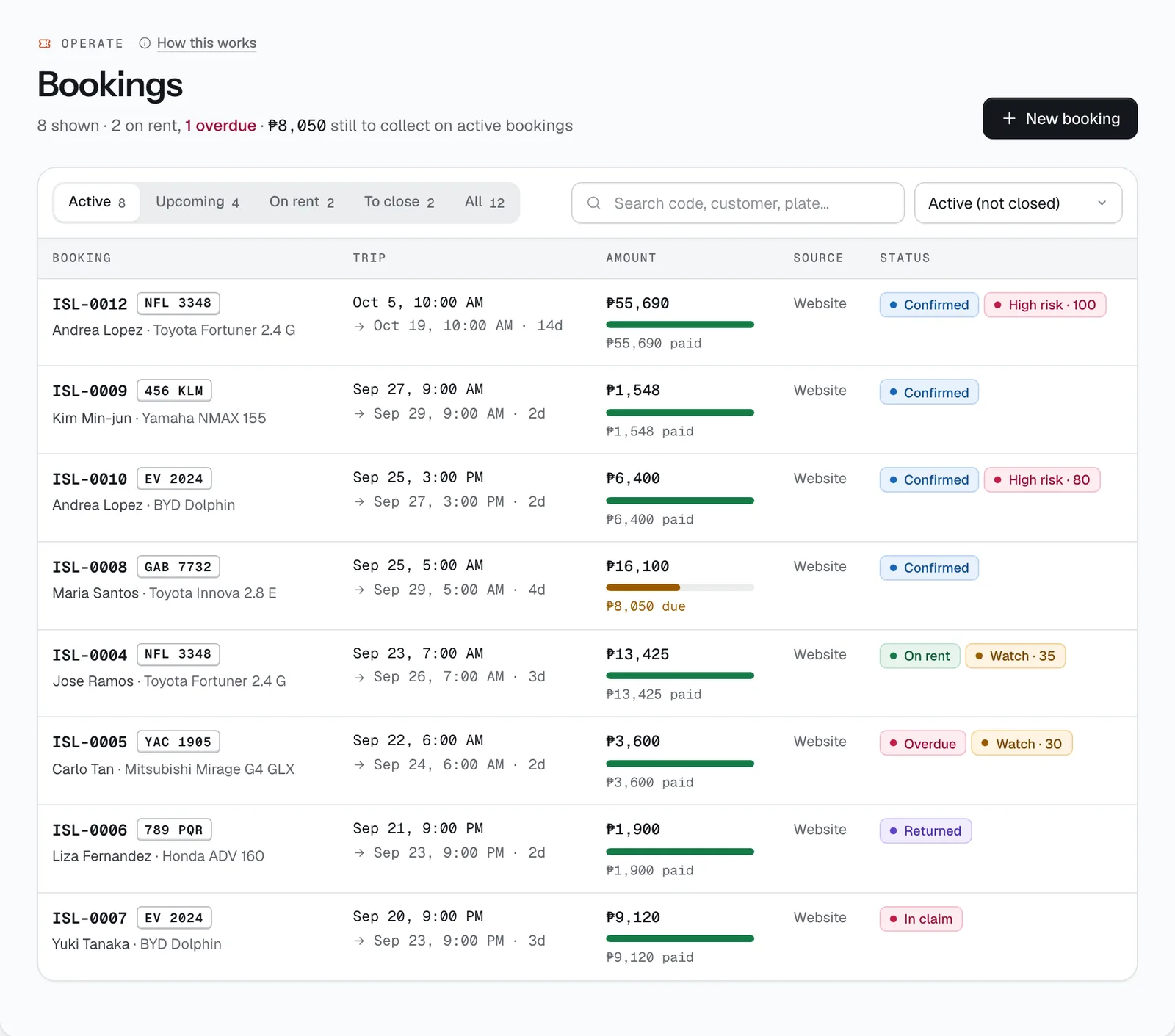
- Views. Active is everything not yet closed (held, confirmed, on rent, overdue, returned, in claim). Upcoming is held and confirmed. On rent includes overdue. To close is returned or in claim. The latest pickup date is at the top.
- Statuses. Held — waiting for payment. Confirmed — paid, not picked up. On rent. Overdue — past the return time and the 60-minute grace period. Returned — back, charges to review. In claim — charges sent to the renter. Closed. Bookings can also end as Cancelled, Expired (never paid) or No-show.
- The line under the title shows how many bookings are on rent, how many are overdue and how much is still to collect on active bookings.
- Each row shows the trip dates and length, the total with a bar for how much is paid (and what’s still due), where the booking came from (Website, Widget, Messenger, Staff, Klook, Import and so on) and its status.
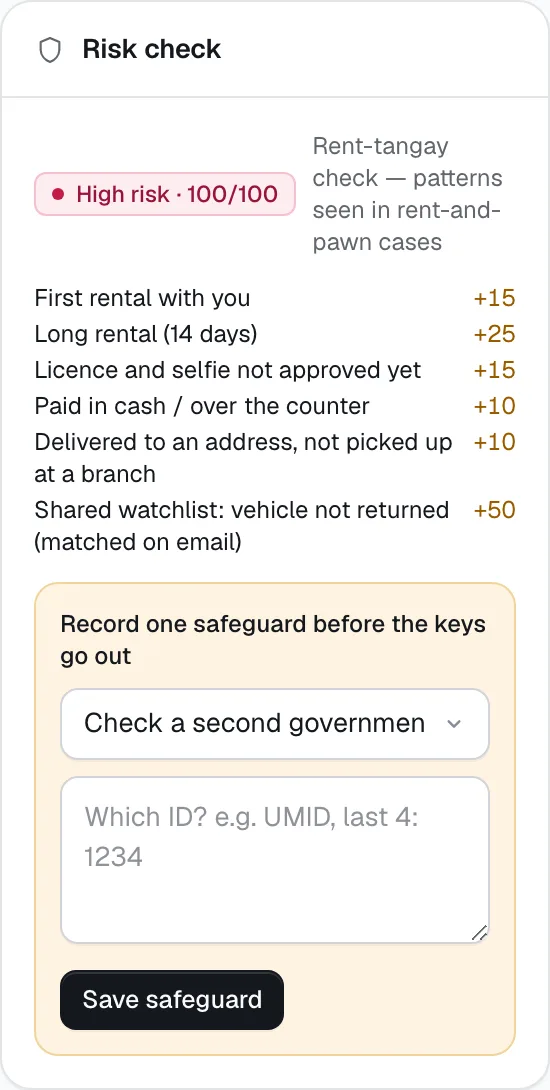
- Risk badge. Upcoming and active bookings get a rent-tangay score from 0 to 100, from patterns seen in rent-and-pawn cases: first rental with you, a new account, a long rental, a licence not yet approved, cash or over-the-counter payment, delivery to an address, RoRo travel, no deposit, a shared-watchlist match and so on. Trusted and VIP renters and past clean rentals lower it. 25–49 shows Watch; 50 or more shows High risk.
- On a phone, each booking is a card with the status and the amount due, so you don’t have to scroll sideways.
Taking a booking at the desk or by phone
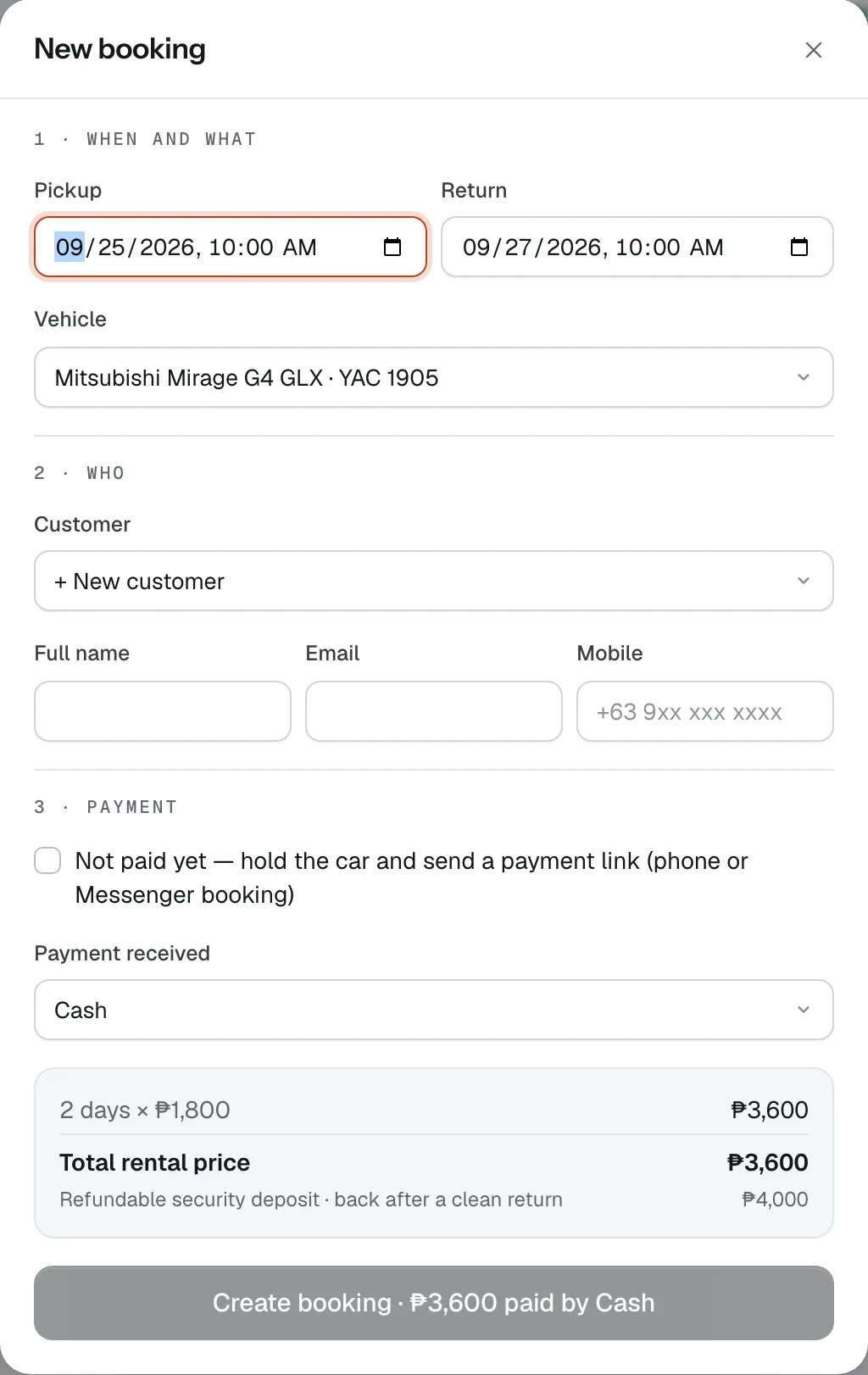
Tap New booking. The form has three parts:
- When and what. Pick the dates, then the Vehicle. Free vehicles are listed first; a vehicle that is taken says — booked on these dates and can’t be booked. The cleaning buffer after other bookings counts as taken.
- Who. Pick an existing customer, or leave + New customer and type their Full name, Email and Mobile (all three are needed, so they get SMS and email updates). If the email already belongs to a customer, the booking goes on their record.
- Payment. Either:
- Paid now: choose how under Payment received — Cash, GCash, Maya, Card, QR Ph or Bank transfer — and tap Create booking. The booking is confirmed at once, the renter gets a confirmation by email and SMS, and an official receipt is issued.
- Not paid yet: tick Not paid yet — hold the car and send a payment link for phone and Messenger bookings. Set how long to hold the car (1 to 72 hours, 6 by default). The link goes out by SMS and email. If it isn’t paid in time, the car is released. This option needs your payment account to be verified.
The price box shows the full breakdown before you confirm. Bookings made here are self-drive, picked up at your branch, without add-ons, and paid in full. For delivery, add-ons or a driver, have the renter book on your booking site, or send them the link to it.
About the deposit: with Card or Maya, the security deposit is held on the renter’s card or wallet at pickup — reserved, not taken. With the other methods it is taken together with the rental payment and refunded after a clean return.
The booking page
At the top: the code, vehicle, dates, plate, where it was booked and the renter’s language, and a progress bar — Booked → Picked up → Returned → Closed — with the time of each step. A held booking shows how long the renter has left to pay.
Below the action buttons you’ll find, when they apply:
- Incident cards (red) for help requests, breakdowns, accidents and theft — reply and resolve right there. See Incidents.
- Review return charges before anything is deducted and the Claim panel after a return. See Claims & repairs.
- Lockbox handover for self pickup: the code, the selfie match and Confirm key is back after a self return.
- Monthly payments or Boundary payments for long-term rentals.
- The deposit timeline after a return, showing the renter’s deposit on its way back.
- Risk check with the reasons behind the score, and Remote engine stop for vehicles with a GPS tracker.
- Handover evidence: pickup and return photos side by side, with fuel and odometer, and anything the renter flagged at pickup.
- Money ledger: every payment, hold, refund and deduction, with who approved it, and the status of each refund.
- History of every status change and date change, and Messages sent — every email and text about this booking.
On the right: Price & payment (total, paid, balance, deposit and its state, such as Due at pickup or On hold — not charged), Customer (tier, verification, licence codes) and Trip (pickup place, one-way return branch, driver, delivery jobs, RoRo, actual pickup and return times, and when the agreement was signed).
Every action on a booking
Buttons only appear when they make sense for the booking’s status and your role.
- Start pickup (confirmed bookings) and Start return (on rent or overdue) open the guided photo check. If one is already started it says Continue pickup check or Continue return check. See Handover check.
- Send payment link shows the amount owed: the payment that confirms a held booking, the remaining balance, the next long-term period, or charges invoiced after the rental. Choose how long it stays open (1 to 72 hours, 24 by default) and whether it goes by SMS, email or both. Once sent, the button says Payment link and opens the link with a QR code, Copy, Resend SMS, Resend email, Open pay page and Cancel link. The booking updates by itself when the renter pays.
- Assign driver — for with-driver bookings. Only team members with the Driver role are listed, and a driver can’t be given two bookings at the same time.
- Flight status — for airport meet-ups. Enter the delay in minutes and tap Update. The renter is told you’ll meet them later, you’re told if the delay affects the next booking, and the no-show clock waits for the delay.
- Goodwill refund — refund part of what was paid, with a written reason. Front desk staff can refund up to their own limit (₱2,000 unless set otherwise when they were invited); owners and managers have no limit.
- Claim pack (PDF) — once a photo check exists. A printable pack with the renter, vehicle, charges and dispute, damage records, incidents, all handover photos, the GPS trail and the signed agreement. Use Print / Save PDF.
- Vehicle not available — for confirmed bookings when you can’t provide the car. The renter gets a full refund, the deposit is released and the booking is cancelled. Help them rebook on another vehicle.
- Mark no-show — once the pickup time has passed. The rental is not refunded and the deposit is released. CeeRent also does this by itself 3 hours after the pickup time (plus any flight delay) if no pickup check was started.
- Cancel booking — an operator cancellation is always a full refund, including the deposit. Write a reason (the renter sees it) and, if you like, tick the box to add a 10% voucher for next time: a one-use code SORRY- plus eight random letters and numbers, sent to the renter and usable by them only.
- Record one safeguard before the keys go out — appears in the risk check on high-risk bookings. Choose Check a second government ID (note which ID), Take an extra deposit (at least ₱1,000, held or charged at pickup) or Manager approval — renter known to us (owners and managers only, with a reason), then Save safeguard. The pickup can’t be submitted until one is saved.
- Send formal demand — for overdue cars or a reported theft. A written demand to return the vehicle within 24 hours goes by SMS and email, and the time it was sent goes into the police pack. The button then counts how many were sent.
- Report theft / non-return — for cars on rent or overdue. File a police report first and enter the Police report / blotter number. This suspends the renter with you, opens a theft incident and starts the claim pack.
- Police / HPG pack — for overdue cars or reported thefts. A printable case pack for the PNP Highway Patrol Group: vehicle details, the renter’s verified identity, the rental, payments with their provider references, the GPS trail and any engine stop, a timeline and your written demand. It lists anything still missing and what to bring (the original OR/CR, a valid ID and your business permit). It is evidence, not legal advice.
- Stop engine — in Remote engine stop, for suspected theft or non-return on vehicles with a GPS tracker. Owners and managers only, with a reason. The engine is cut only once the vehicle is at 10 km/h or less, never at speed, and the renter gets an SMS to call you. Undo with Restore engine (or Cancel stop while it is still waiting).
If a car comes back more than a day early, the booking shows a note: by default there’s no refund for unused days, but you can give a goodwill refund.
- Payment received
- Not paid yet — hold the car and send a payment link
- Create booking

- Start pickup
- Send payment link
- Flight status
- Cancel booking
- Choose a safeguard
- Save safeguard
Still not sure how it works?
Ask a person, in Filipino or English — Mon–Sat, 8:00–20:00 PHT.