Dashboard · Customers
Traffic violations
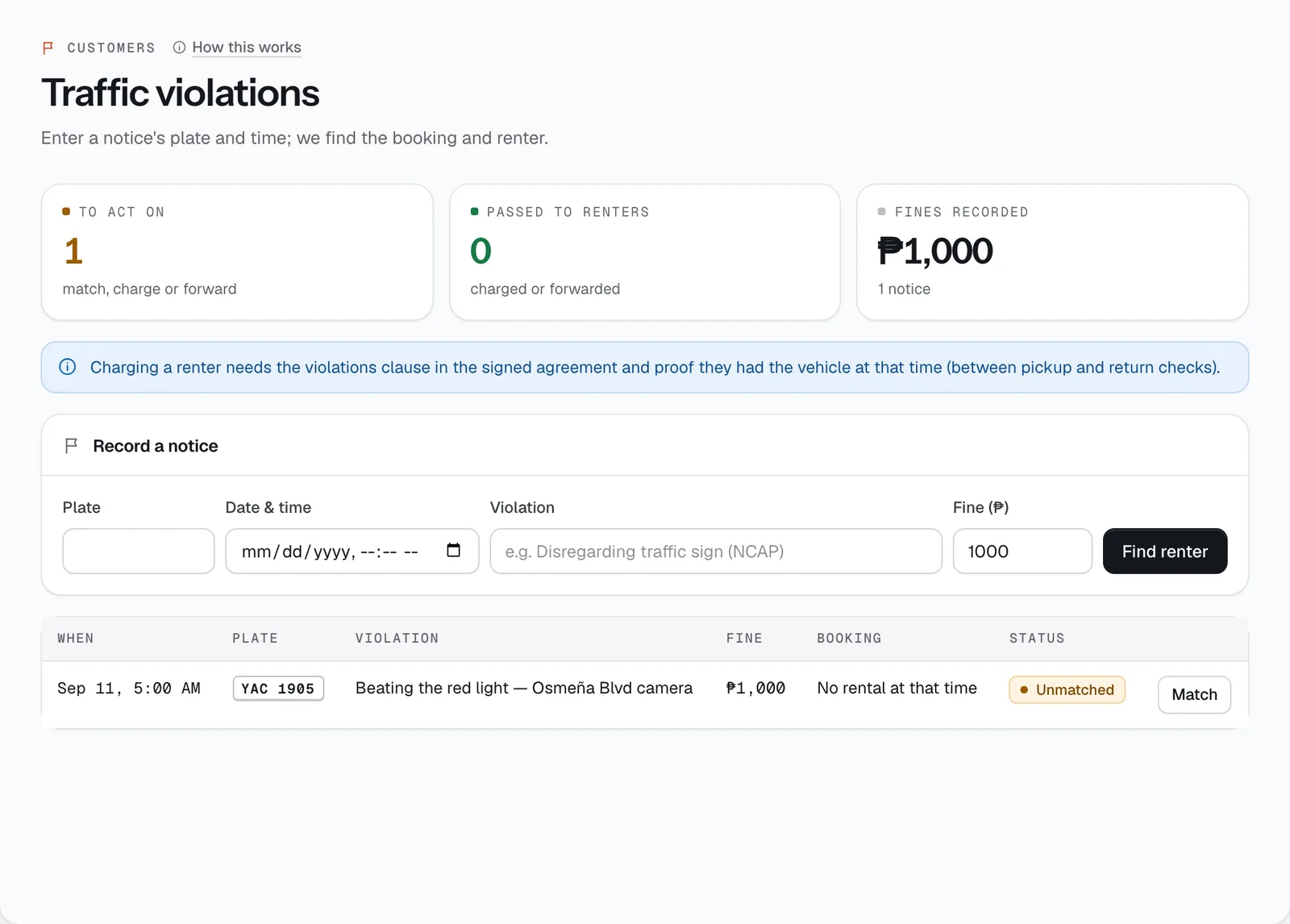
When a traffic notice arrives for one of your plates — like an NCAP camera ticket — enter it here. CeeRent finds who had the vehicle at that time, and you charge the fine to them or forward the notice.
- Where
- Customers → Traffic violations
- Who can use it
- Owners, managers and front desk.
- Plans
- Every plan.
- Checked
- Sep 25, 2026
What you can do
- Record a notice under Record a notice: Plate, Date & time, Violation and Fine (₱), then press Find renter.
- See which booking and renter it belongs to, with a link to the booking.
- Charge the fine to the renter.
- Forward the notice so the renter settles it themselves.
- Keep track with the tiles To act on, Passed to renters and Fines recorded.
How it works
- How the match works. CeeRent looks for the booking whose vehicle had that plate between the recorded pickup and return (or is still out). Those handover times are your proof the renter had the vehicle.
- If there was no rental at that time, the notice is marked Operator liable — the vehicle was with you.
- A matched notice waits with the status Unmatched until you choose Charge or Forward.
- Charge: the fine is added to the booking’s charges and invoiced to the renter. They get an email and SMS saying which notice it was and that it’s billed under their rental agreement. The status becomes Charged.
- Forward: the renter gets the notice details by email and SMS and settles it with the issuing office. You don’t collect anything. The status becomes Forwarded.
- Both need a signed rental agreement on the booking — the agreement has the violations clause.
Still not sure how it works?
Ask a person, in Filipino or English — Mon–Sat, 8:00–20:00 PHT.