Dashboard · Operate
Calendar
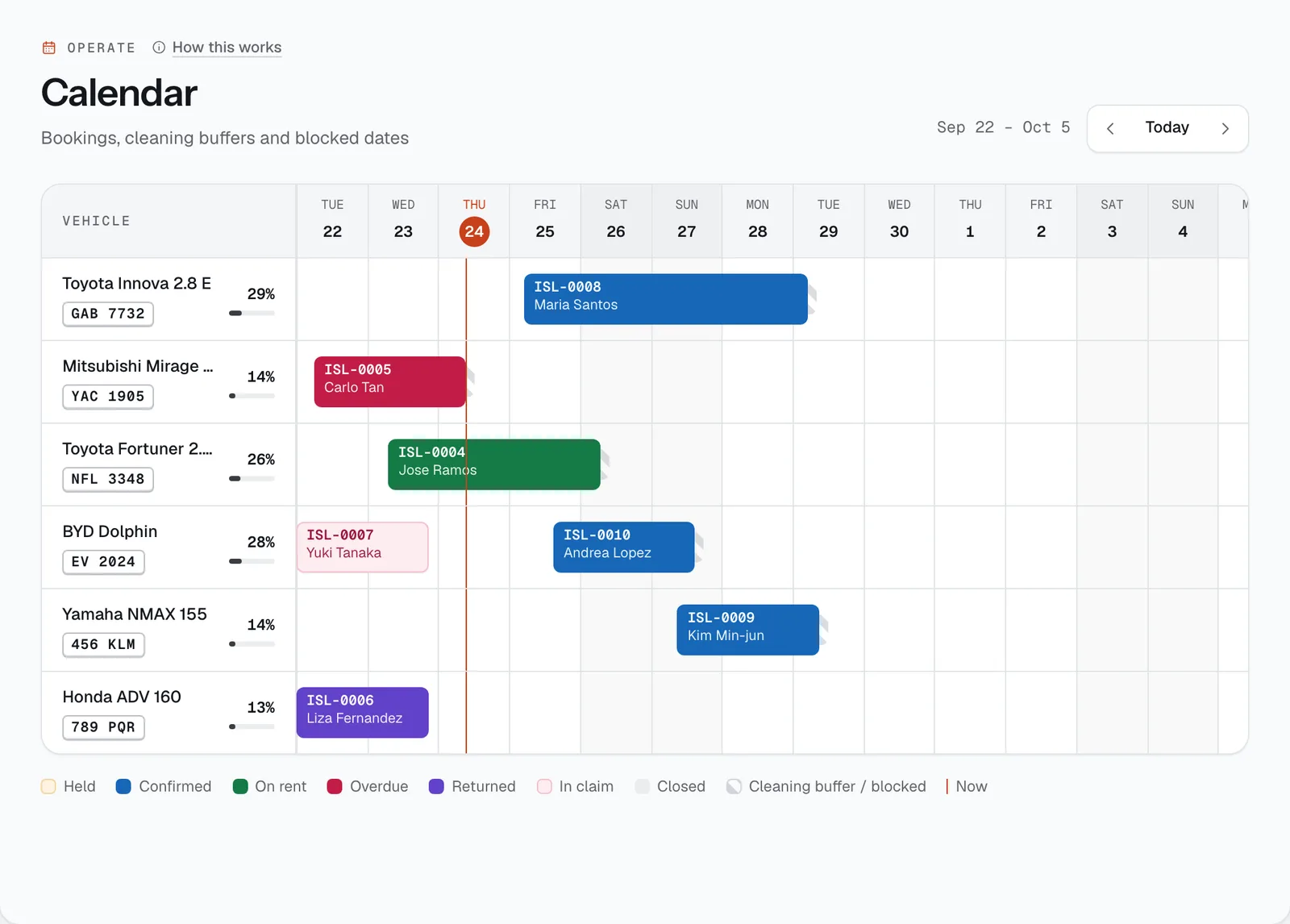
Two weeks of your whole fleet at a glance: one row per vehicle, one bar per booking, with the cleaning time after each rental and the dates you’ve blocked.
- Where
- Operate → Calendar
- Who can use it
- Owners, managers and front desk.
- Plans
- Every plan.
- Checked
- Sep 25, 2026
What you can do
- See 14 days at once, starting two days ago. Move with Previous week and Next week, and jump back with Today.
- Tap a booking bar to open the booking, or a vehicle name to open the vehicle.
- See how busy each vehicle is: the percentage next to it is how much of the two weeks it is booked.
- Spot gaps and clashes before you promise a car on the phone.
How it works
- Colours follow the booking status: Held, Confirmed, On rent, Overdue, Returned, In claim and Closed — the legend is under the calendar. An overdue bar keeps growing until the car is back.
- Striped blocks are the cleaning buffer after each active booking (3 hours by default, set in Settings → Policies) and dates you blocked, labelled Owner use, maintenance or other. Renters can’t book over either.
- A held booking takes the car only while the renter still has time to pay. When the hold runs out, the car is free again.
- The vertical line marks now; weekends are shaded. On a phone, swipe sideways — the vehicle names stay in place.
- To block dates (owner’s own use, maintenance), open the vehicle and use its Blocked dates tab.
Still not sure how it works?
Ask a person, in Filipino or English — Mon–Sat, 8:00–20:00 PHT.