Vehicles
Your fleet in one list: every car and scooter with its rates, deposit, photos and papers. What you set here is what your booking site, calendar, handover checks and reports use.
- Where
- Fleet → Vehicles
- Who can use it
- Owners and managers. Front desk, field staff, drivers and accountants don't see Vehicles in the sidebar.
- Plans
- Every plan. Plans include Starter 5, Standard 10, Plus 25 vehicles; add packs of 5 for ₱299 a month each.
- Checked
- Sep 25, 2026
What you can do
- Add a unit with Add vehicle: fill in the details and rates, then press Add vehicle at the bottom of the form to save it.
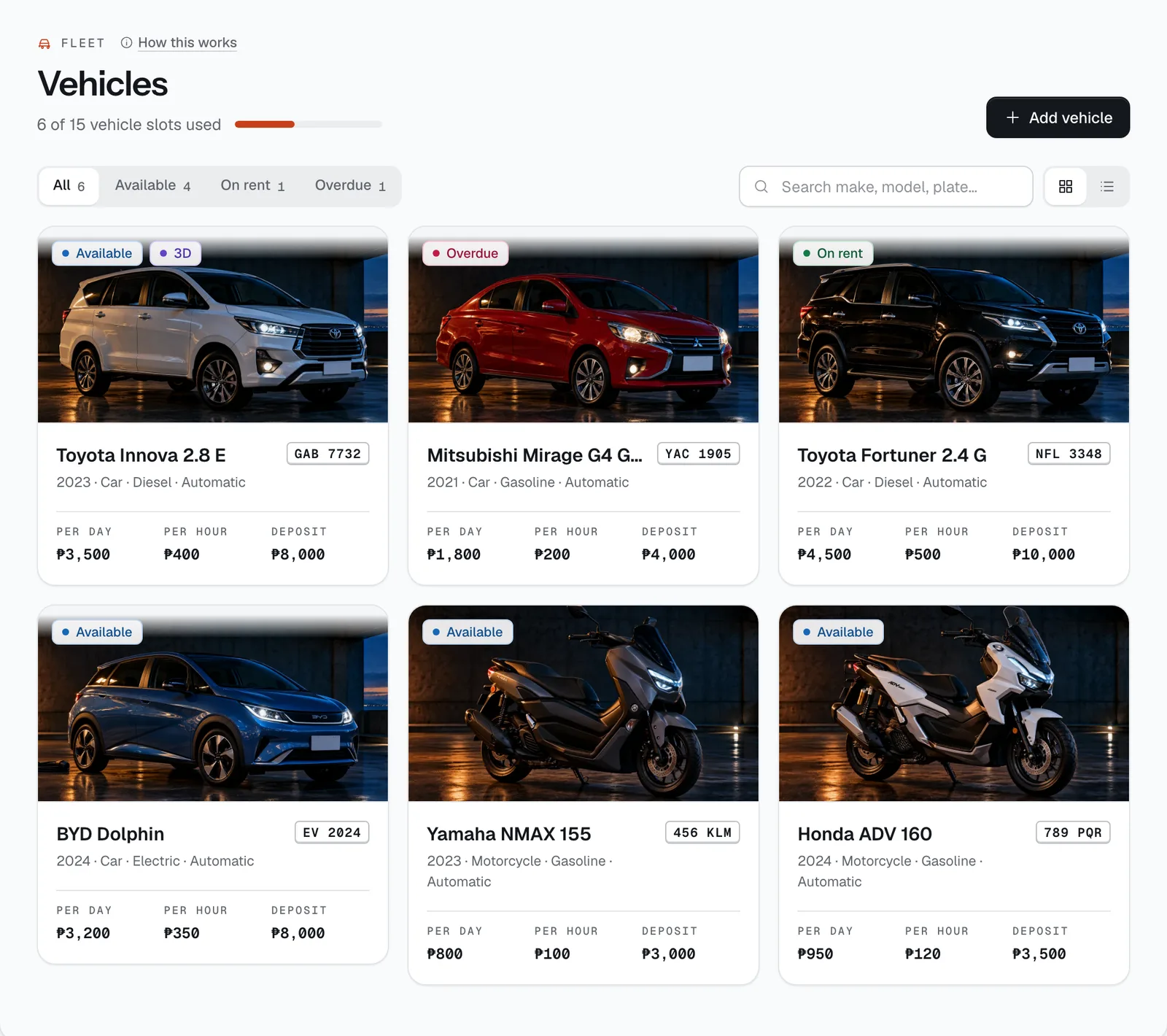
- Find a unit fast: filter by All, Available or On rent (plus Overdue and Inactive when you have any), search by make, model or plate, and switch between cards and a table.
- Open a vehicle to edit it in six tabs: Details & rates, Photos, Blocked dates, 3D model, Languages and Damage & repairs.
- Block dates for personal use or maintenance so renters can’t book them.
- Let AI draft your listing text in Filipino, Korean, Chinese or Japanese, check it, then Approve it.
- See the listing the way renters see it with View listing.
- Take a unit off your booking site without deleting it by unticking Listed for booking.
- Close a repair with the shop’s real cost using Mark repaired.
How it works
- Vehicle slots. The top of the page shows how many slots you use, for example “6 of 10 vehicle slots used”. Your plan includes a number of vehicles (Starter 5, Standard 10, Plus 25). Need more? Add a pack of 5 for ₱299 a month in Workspace → Subscription.
- Only vehicles that are Listed for booking use a slot. An unlisted vehicle shows as Inactive, keeps its history and frees its slot. When every slot is taken, CeeRent won’t let you add or re-list a vehicle until you unlist another one or add a pack.
- Each plate can be used once in your fleet. It needs at least 3 characters and is saved in capital letters.
- The daily and hourly rates must be more than ₱0. The deposit can be ₱0.
- How the hourly rate works. Any rental up to 24 hours costs one day. After that, renters pay whole days plus each extra hour (rounded up), but the extra hours never cost more than one more day. Example with ₱3,500 a day and ₱400 an hour: 2 days and 3 hours is ₱7,000 + ₱1,200 = ₱8,200; 2 days and 10 hours is ₱7,000 + ₱3,500 = ₱10,500.
- Each vehicle card shows its status: Available, On rent, Overdue or Inactive. A violet 3D badge means it has a live 3D view on your site.
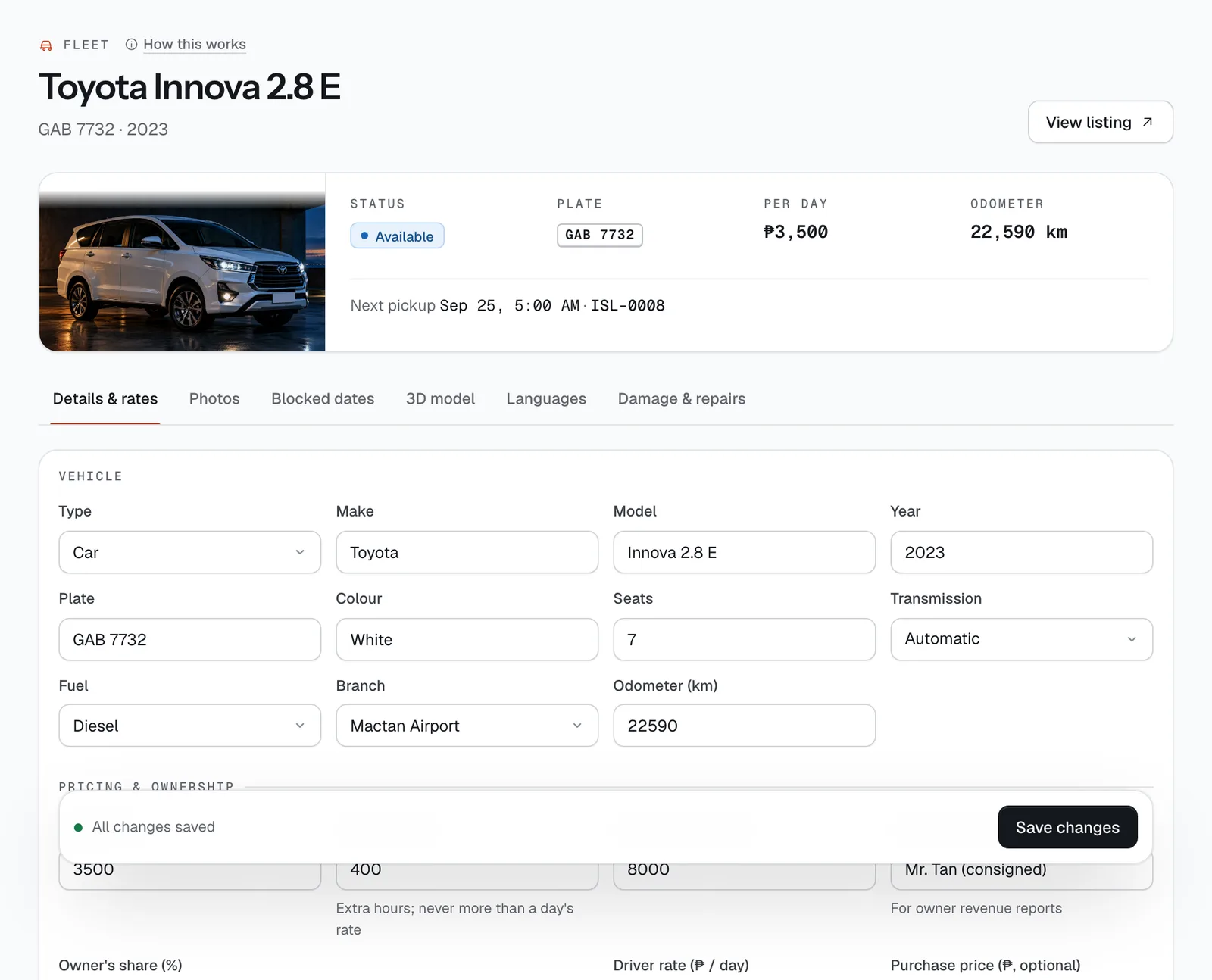
- Inside a vehicle, the summary at the top shows its status, plate, daily rate and odometer, and either the booking it’s out on (with the due-back time) or its next pickup.
- The odometer goes up by itself when staff record the reading at return, so oil-change reminders stay right.
- Changes save only when you press Save changes. The bar at the bottom says Unsaved changes until you do, and Discard puts everything back.
Details & rates tab
The same form you fill in when you add a vehicle. It has four parts:
- Vehicle: Type (Car or Motorcycle), Make, Model, Year, Plate, Colour, Seats, Transmission, Fuel (Gasoline, Diesel or Electric — electric adds Range (km)), Branch and Odometer (km).
- Pricing & ownership: Daily rate (₱), Hourly rate (₱), Security deposit (₱) — the default for its type from Settings → Policies → Deposits, or tick Own to give this vehicle its own amount (a Fortuner can carry more than a Mirage). If you take no deposits it just says None. If the car belongs to someone else, type their name in Owner (if consigned) and set Owner's share (%) (it starts at 70%) — this feeds the owner statements in Reports. Driving is Self-drive only, Self-drive or with our driver, or Always with our driver — for bridal cars, chauffeur sedans and tour vans. With a driver, set the Driver rate (₱ / day); an always-with-driver vehicle is priced and booked with its driver everywhere, and renters aren't asked for a licence. Purchase price (₱, optional) lets Reports show how close the unit is to paying for itself.
- LTO papers: OR number, CR number, MV file no., Engine no., Chassis no. and a photo of the OR/CR. The numbers are only used in the police / HPG pack if a vehicle is taken. The OR/CR copy is shown in the renter’s checkpoint pack, so they can show it at a checkpoint.
- Maintenance & tracking: Next oil change (km), LTO registration expires, Insurance expires and GPS tracker ID (optional). These drive the reminders in Maintenance and the trips in GPS tracking.
Below that are the Description renters read on the listing and the Listed for booking tick box.
Photos tab
Add real photos of this exact unit with Add a photo. The first photo is the one on the vehicle card and at the top of the listing. Remove takes a photo off your booking site straight away (you’re asked to confirm first).
Good photos sell. Shoot in daylight, the whole vehicle in frame, and include the inside.
Blocked dates tab
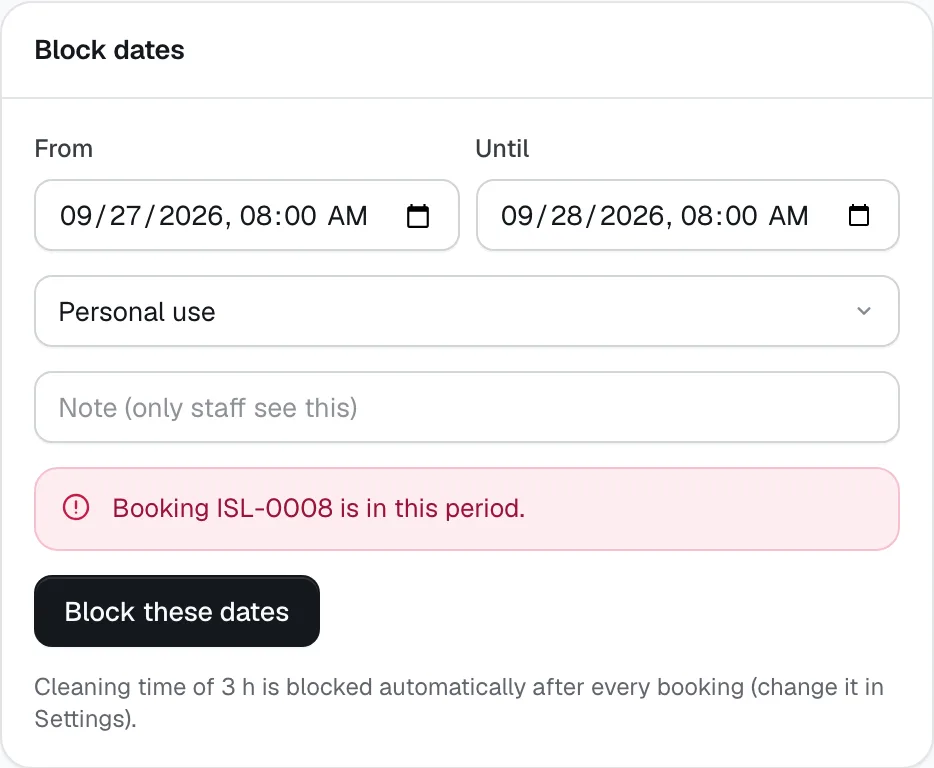
Use this when you need the unit yourself, it’s at the shop, or it’s out for any other reason. Pick From and Until, choose Personal use, Maintenance or Other, add a note if you like (only staff see it), then press Block these dates.
- Renters see those days as taken on your booking site.
- You can’t block over a booking. If one is in that period, the tab tells you which booking it is.
- You don’t need to block cleaning time. After every booking CeeRent keeps the unit free for the cleaning buffer set in Settings → Policies → Cleaning buffer between bookings (3 hours unless you change it).
- Changed your plans? Press Remove next to a period under Blocked periods and renters can book it again.
3D model tab
Request a 3D view of this unit that renters can spin on the listing. You upload 8 photos, a model is made and checked, and you approve it before it goes live. The full steps, credits and revision rule are on the 3D models page.
Languages tab (AI drafts)
Your booking site can speak English, Filipino, Korean, Chinese and Japanese. This tab shows one card for each language you turned on in Settings → Languages. If only English is on, it tells you to add languages there first.
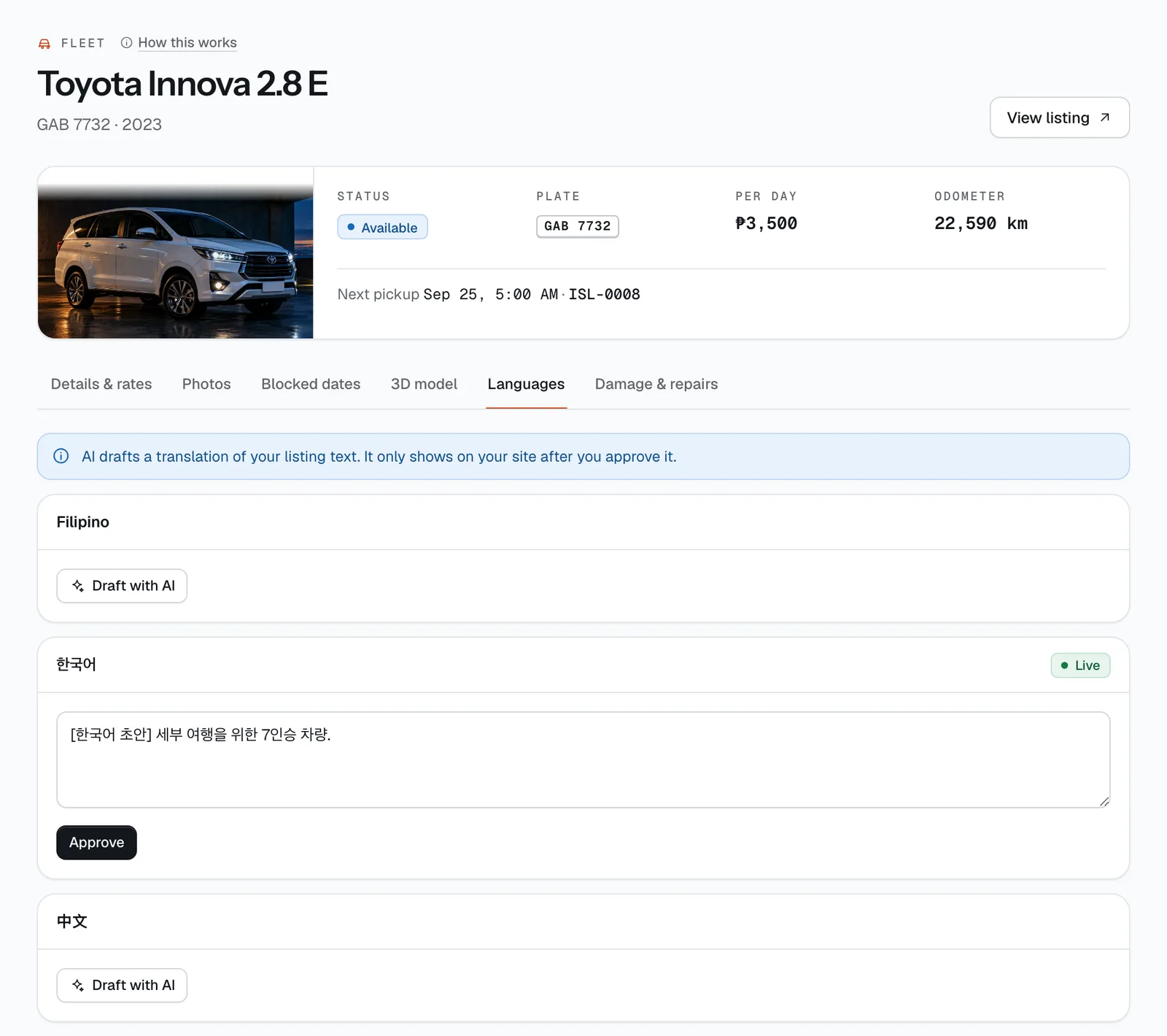
- Press Draft with AI and a translation of your English description appears. It’s marked Draft and renters don’t see it yet.
- Read it, fix anything in the text box, then press Approve. The card turns Live and renters browsing in that language see your text.
- Until a language is approved, renters in that language see your English description.
- If you change the English description later, the translations don’t change by themselves. Update each one in its text box and approve it again.
Damage & repairs tab
A log of damage on this unit: when it was found, what it is, the booking it came from, the cost and whether it’s Open or Repaired. Damage lands here when you raise a claim after a return (see Claims & repairs).
When the work is done, press Mark repaired and enter the Actual repair cost (₱) from the shop’s receipt. That cost is counted as a repair in the vehicle’s profit in Reports and Expenses.
- Details & rates
- Blocked dates
- Languages
- Damage & repairs
- Block these dates
- Draft with AI
- Approve
Still not sure how it works?
Ask a person, in Filipino or English — Mon–Sat, 8:00–20:00 PHT.