Dashboard · Fleet
GPS tracking
Where your vehicles are during a rental: live trips on a street map, alerts for speeding, leaving your area or turning up at a RoRo port, and a remote engine stop for theft or non-return.
- Where
- Fleet → GPS tracking
- Who can use it
- Owners, managers and front desk can see trips and alerts. Only owners and managers can save the geofence and retention, or stop and restore an engine.
- Plans
- A paid add-on on every plan: ₱199 per tracked vehicle a month. You buy the tracker hardware.
- Checked
- Sep 25, 2026
What you can do
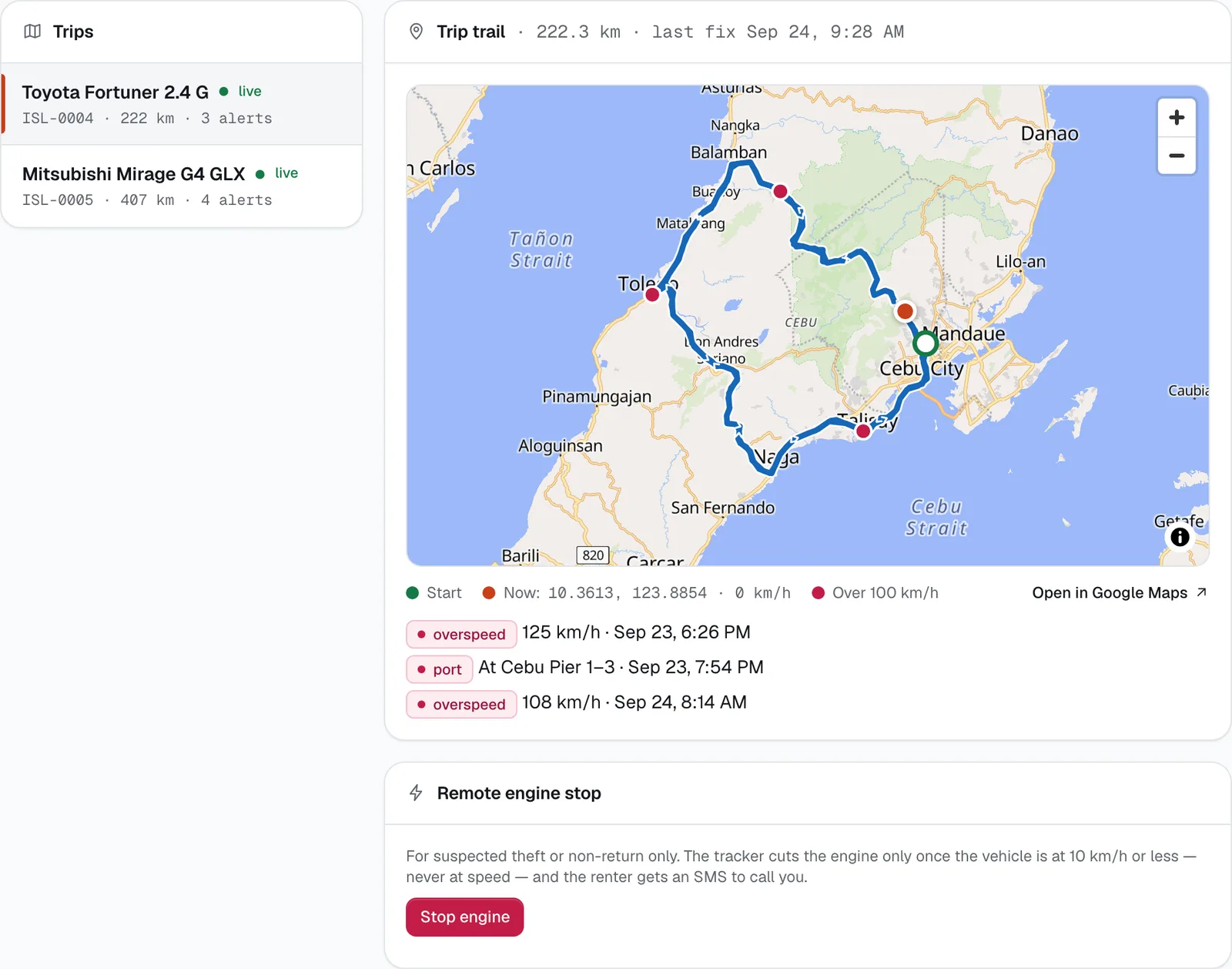
- Pick a trip from the Trips list — live ones are marked live — and see its trail on the map with the km driven and the time of the last position.
- See where the trip started, where the vehicle is now and how fast it’s going, with red dots where it went over 100 km/h.
- Open the current spot in Google Maps with Open in Google Maps.
- Draw the area vehicles should stay in under Geofence: Name, Radius (km), Centre lat and Centre lng.
- Choose how long trails are kept under Trail retention, then Save days.
- Stop a vehicle’s engine remotely with Stop engine when you suspect theft or it isn’t coming back, and bring it back with Restore engine.
How it works
- Turning it on. GPS tracking is an add-on per vehicle. In Workspace → Subscription, press +1 next to GPS tracking for each vehicle you track (₱199 per vehicle a month). You buy the tracker yourself. Then type the tracker’s ID into the vehicle’s GPS tracker ID (optional) field. Until the add-on is on, this page says GPS tracking is off.
- When it records. Only during a rental: from the moment the pickup is recorded until the vehicle is returned. A position comes in every 2 minutes while the vehicle moves, and every 30 minutes while it’s parked.
- Privacy. Only you and your team can see the trails, and the rental agreement tells the renter the vehicle is tracked. Each trail is deleted automatically after your retention period — 30 days after the return unless you change it (anything from 1 to 180 days).
- A trip also counts towards the booking’s risk score: a port alert or leaving the area makes a booking look riskier on the booking page.
Alerts
Each alert shows on the trip (red label, what happened, when) and you get a staff alert with the booking code. The same kind of alert won’t repeat on a trip within 6 hours.
- Overspeed: the vehicle went over 100 km/h.
- Geofence: the vehicle left your area (for example “Left Cebu island”). Bookings with a RoRo add-on don’t trigger it.
- Port: the vehicle is within 3 km of a RoRo port — Cebu Pier 1–3, Tagbilaran, Batangas, Matnog, Dumaguete, Ormoc, Iloilo or Manila North Harbor — and the booking has no RoRo add-on. This is often the first sign of a “rent-tangay”. Call the renter first.
Remote engine stop
For suspected theft or non-return only. The Remote engine stop card sits under the map for a vehicle that is out on a tracked rental, and on the booking page.
- Press Stop engine and give a Reason (for example “At Cebu pier with no RoRo permission, not answering calls”). The reason goes into the audit log and the police pack.
- The engine is never cut at speed. The command waits until the vehicle is at 10 km/h or less — the card says Queued until then, and Immobilised after. The renter gets an SMS asking them to call you.
- Once stopped, the engine can’t restart until you press Restore engine. While it’s still queued, the same button reads Cancel stop.
- Only owners and managers can stop or restore an engine. Others see “Ask an owner or manager to stop the engine.”
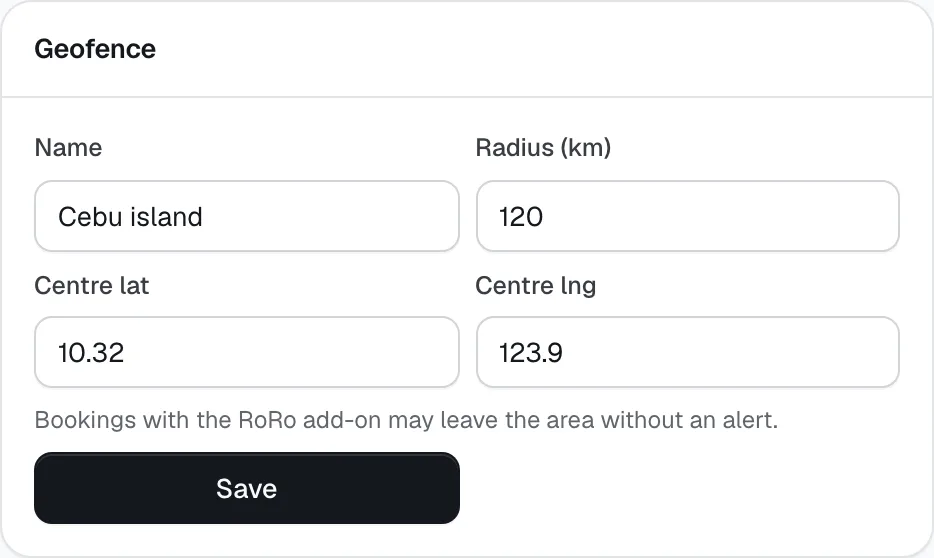
- Radius (km)
Still not sure how it works?
Ask a person, in Filipino or English — Mon–Sat, 8:00–20:00 PHT.