Set up your team
Give each person the right role, licence and branches, set refund limits, keep sign-in safe, and switch access off the day someone leaves.
- Time
- 10 min · 7 steps
- Plans
- Every plan. Included licences — Starter: 1 full · Standard: 2 full + 1 view-only · Plus: 5 full + 3 field + 2 view-only. Extra licences: ₱199 full, ₱99 field, ₱49 view-only a month.
- Where
- Workspace → Team & licences
- Checked
- Sep 25, 2026
Pick a role for each person
Every staff member needs their own licence — never share a sign-in. Renters never use one.
Role Licence What they can do Owner Full Everything, including Subscription, the payment account and handing over ownership. One per business. Manager Full Everything except Subscription, the payment account and ownership. Refunds without a limit; can publish the booking site. Front desk Full Bookings, customers and licence checks, pickups and returns, claims, Inbox, payment links, and refunds up to their limit. No money pages, reports, vehicles, prices or settings. Field staff Field My schedule: pickups and returns at their branches, with the photo checks. Driver Field The trips they’re assigned to, with the photo checks. Accountant View-only Payments & refunds, Expenses and Reports, with exports. Can log expenses. No bookings. Check your licences
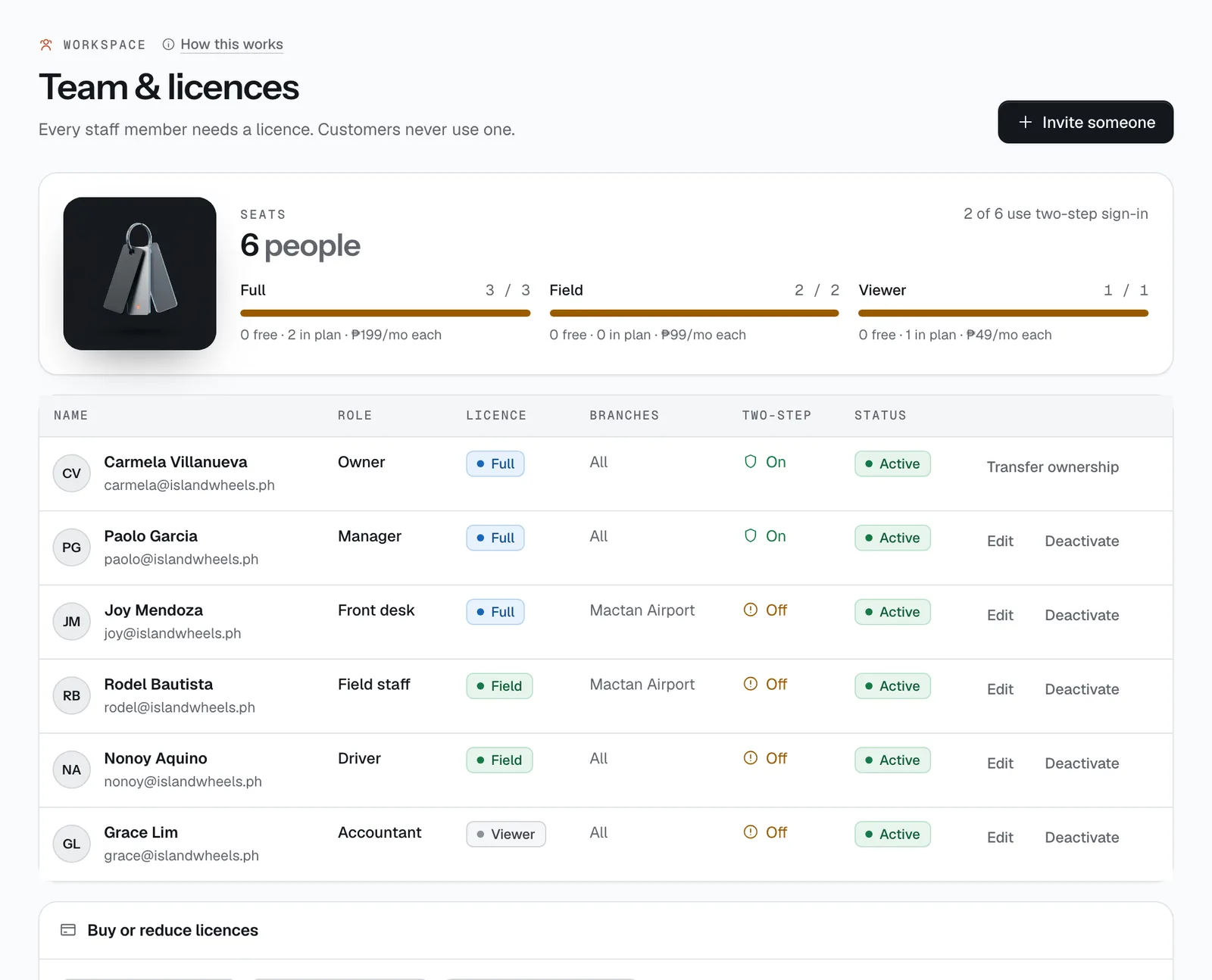
Workspace → Team & licences shows how many full, field and viewer licences you use and own, how many your plan includes, and everyone with their role, branches, two-step status and whether they’re active or invited.
The owner can buy one more under Buy or reduce licences with + 1 full, + 1 field or + 1 viewer — each button shows today’s price, which covers only the rest of this billing month. Reduce licences… takes effect on your next billing date; you can’t go below what’s in use or what your plan includes.
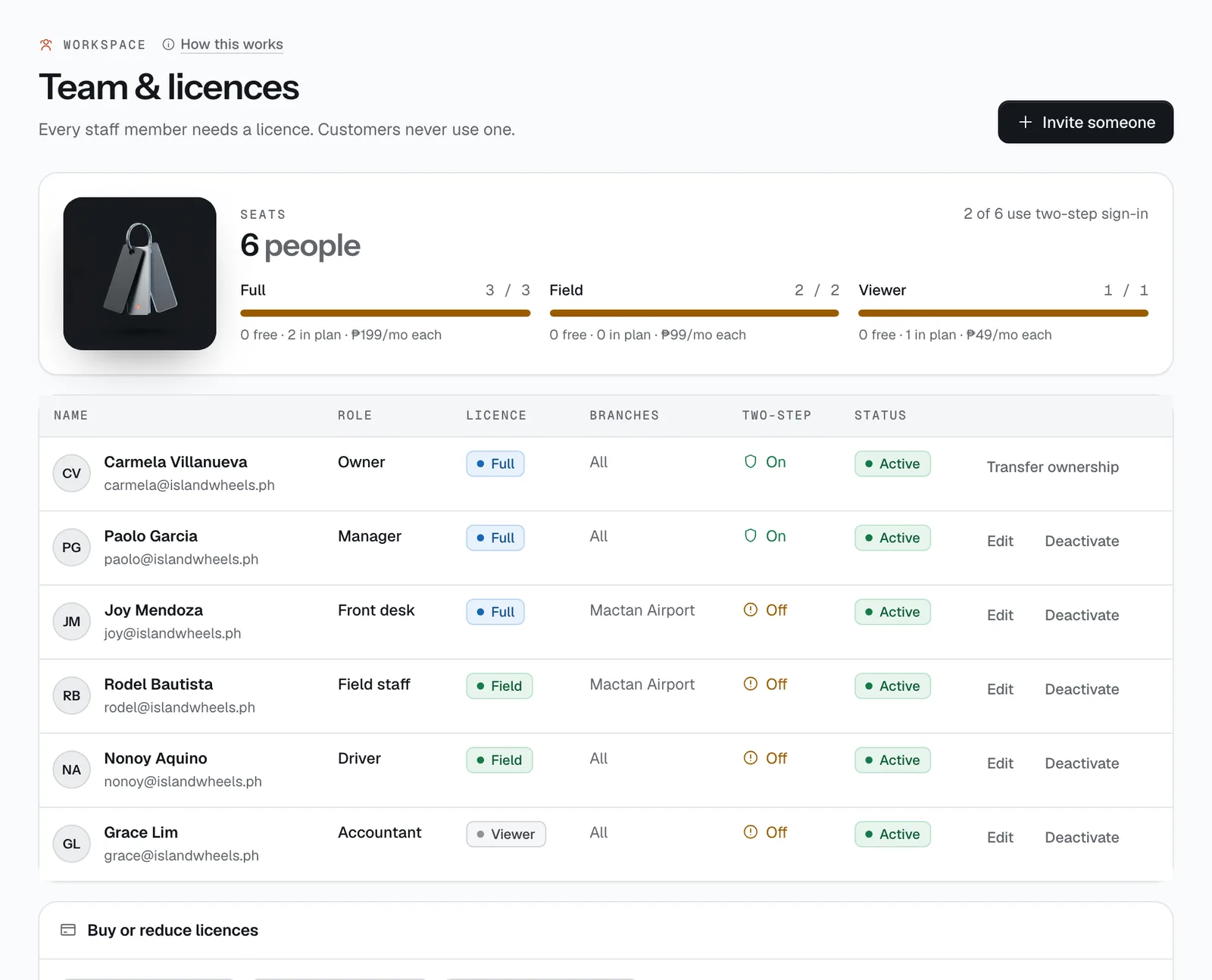
- Invite someone
- Licences used
- Edit
- Deactivate
Invite someone
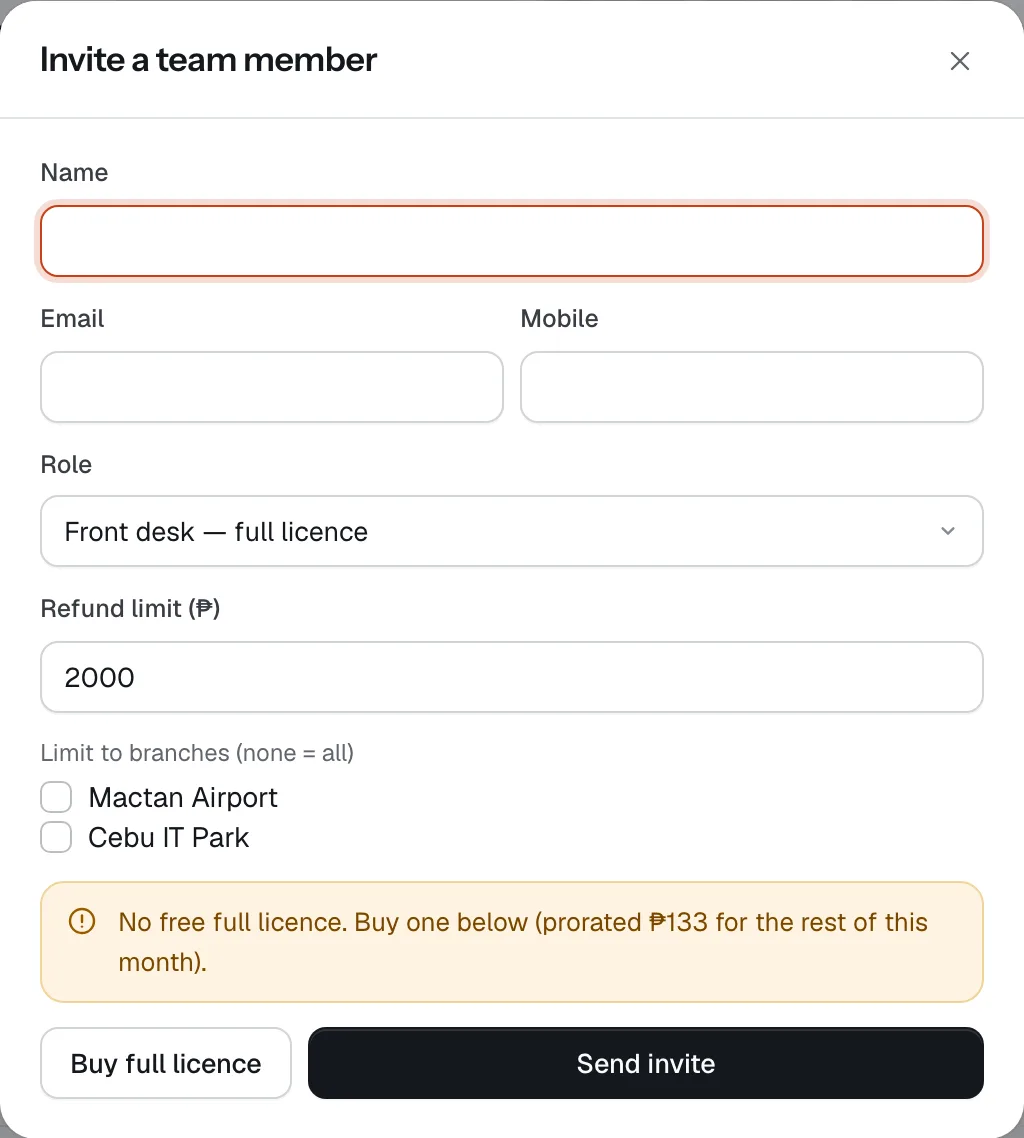
Tap Invite someone. Enter their Name, Email and Mobile, and choose a Role — the list shows which licence each role uses. For front desk, set a Refund limit (₱). With more than one branch, tick the branches they work at (none means all).
Tap Send invite. They get an email and show as Invited until they accept and set up their sign-in. No free licence of that type? The invite tells you, and the owner can buy one right there.
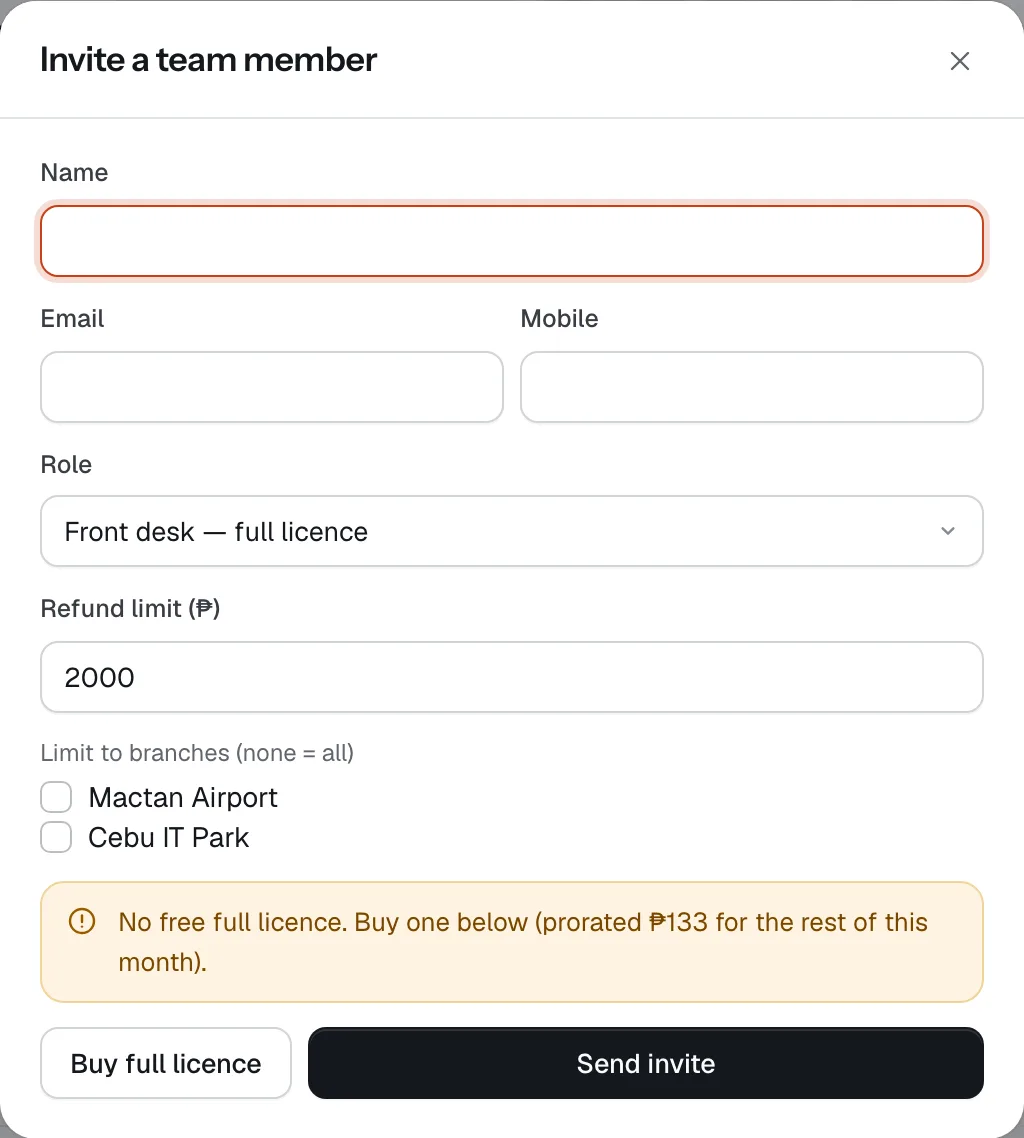
- Role
- Refund limit
- Limit to branches
- Send invite
Add your branches
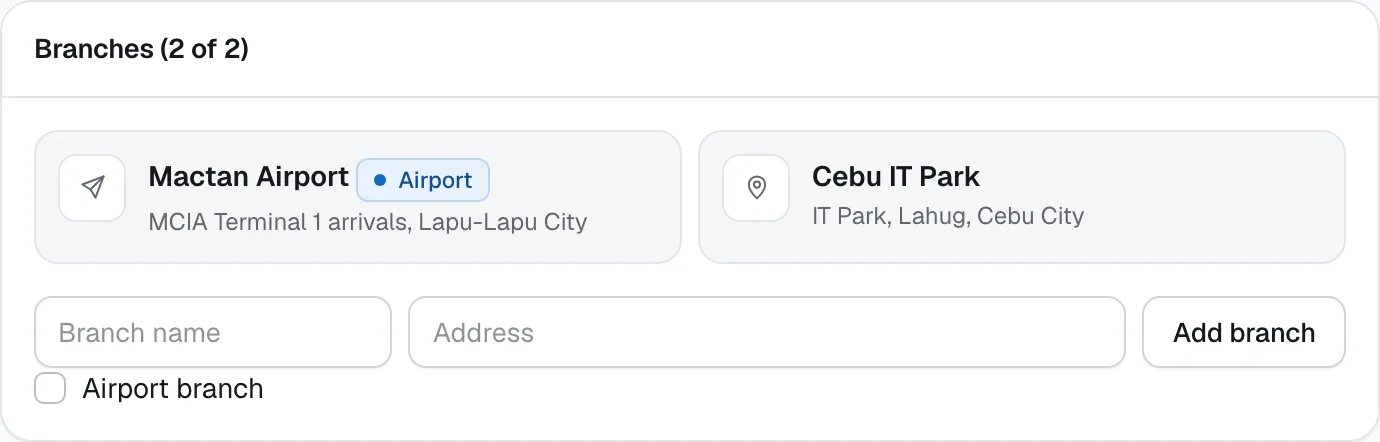
In Settings → Branches, type a Branch name and Address, tick Airport branch for an airport desk, and tap Add branch. The title shows how many you have of how many your plan allows. More branches are ₱399/month each, added in Subscription.
Branches decide what field staff see: their My schedule lists pickups and returns at their branches, and they can only do checks for those.
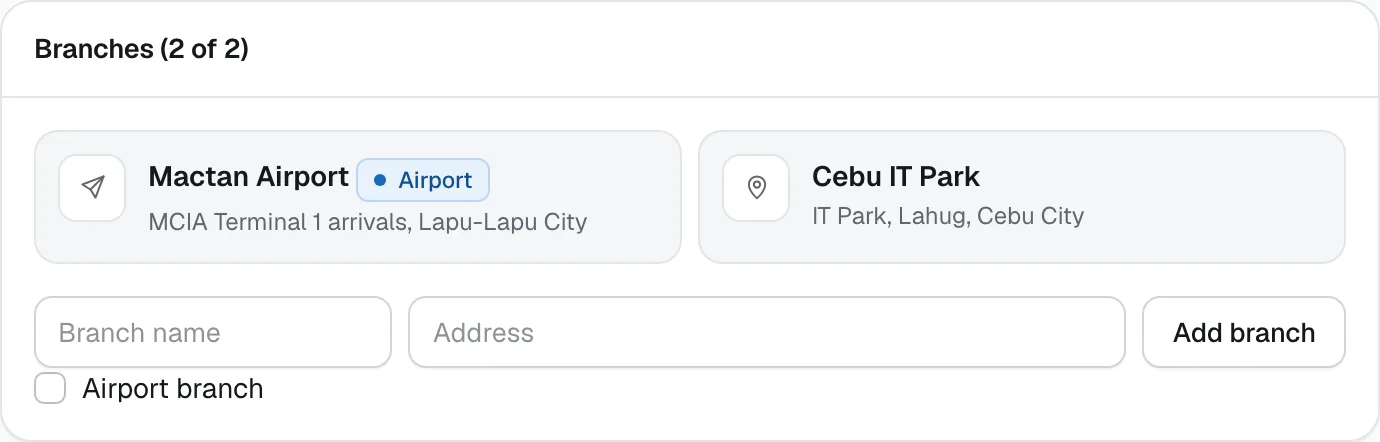
- Branch name
- Airport branch
- Add branch
Set refund limits
Front desk staff can give refunds up to the limit you set when inviting them (default ₱2,000). A bigger refund is refused with “Your refund limit is … Ask a manager.” Managers and the owner have no limit; field staff, drivers and accountants can’t refund.
Every manual refund needs a written reason and is saved in the Audit log with the person’s name.
Keep sign-in safe
Owners and managers must use two-step sign-in — CeeRent asks them to set it up before they can open the dashboard (in the first week of a new account, and for managers invited before you go live, they can set up first and turn it on from the yellow bar). For everyone else it’s a choice: they turn it on in My sign-in & devices → Two-step sign-in → Turn on. The team list shows who has it on.
The same page lists every signed-in device. Lost a phone? Sign out that device, or Sign out everywhere.
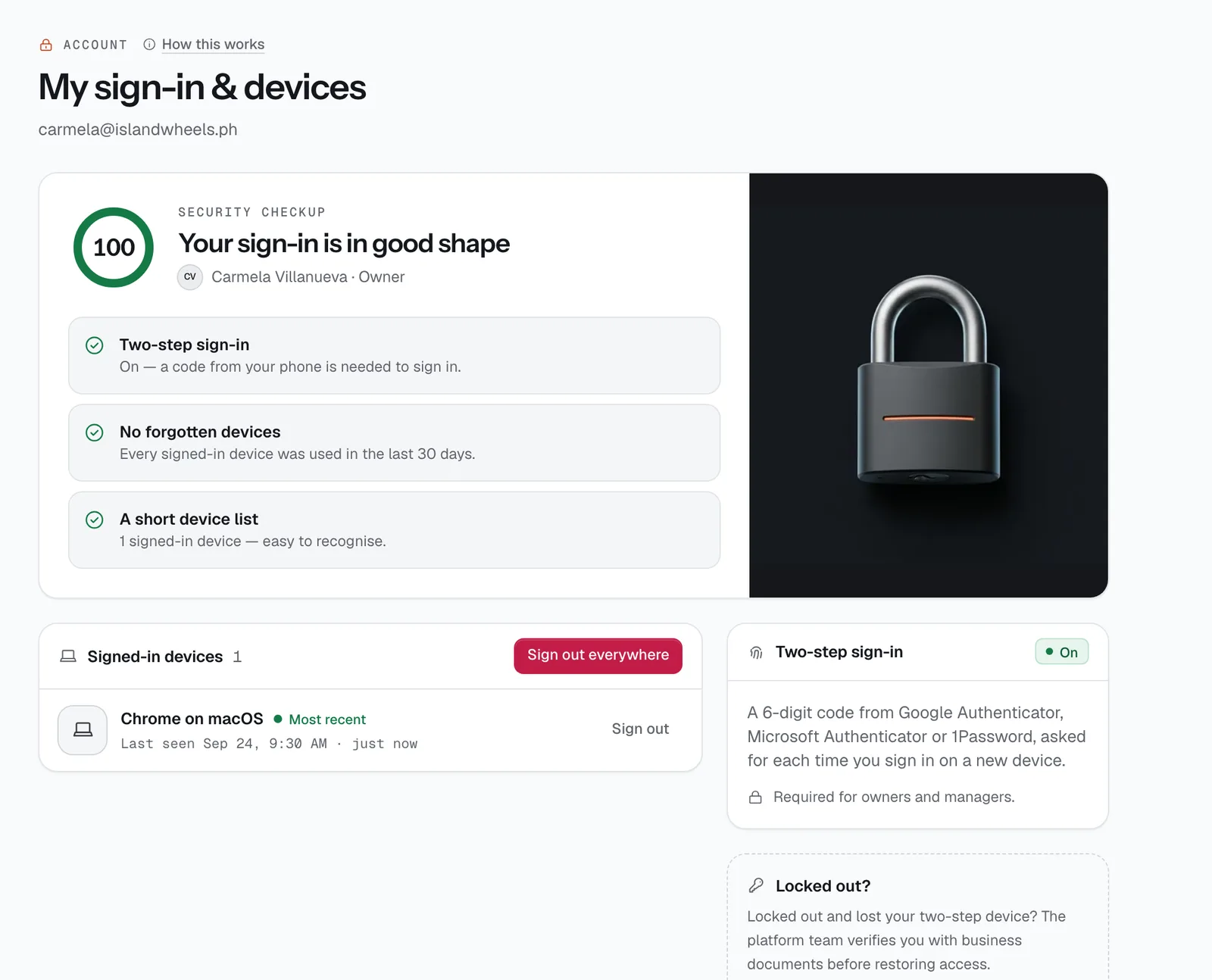
- Two-step sign-in
- Sign out everywhere
Change a role, or switch someone off
Edit changes a person’s role and branches right away. Moving between a full and a field role swaps the licence type, so you need a free one of the new type.
When someone leaves, tap Deactivate. Their access ends on every device immediately and their licence is freed for someone else; what they did stays in the audit log. Reactivate brings them back if a licence is free.
Handing the business over? The owner uses Transfer ownership: pick an active full user, and both of you enter your two-step codes. The new owner needs two-step sign-in turned on; you become a manager.

Good to know
- Give your bookkeeper the Accountant role: it uses a view-only licence (₱49/month) and can’t touch bookings. See Close the month.
- The owner can’t be deactivated, and nobody can deactivate themselves — transfer ownership first.
- See every action by person and time in Workspace → Audit log. More in Team & licences.
Stuck on a step?
A person answers, in Filipino or English — Mon–Sat, 8:00–20:00 PHT.
- Your first pickup, step by stepApprove the renter's licence, collect what's owed, get the agreement signed, photograph the vehicle and hand over the keys — with a record you and the renter both agreed to.12 min
- Close the monthCheck every peso in and out, pull your receipts, log your costs, see which vehicles made money, and hand your bookkeeper clean CSV files.20 min
- Sign up and go liveCreate your account, work through the setup steps, switch your booking site on and share it. Most operators finish in one sitting.20 min