Dashboard · Workspace
Automations
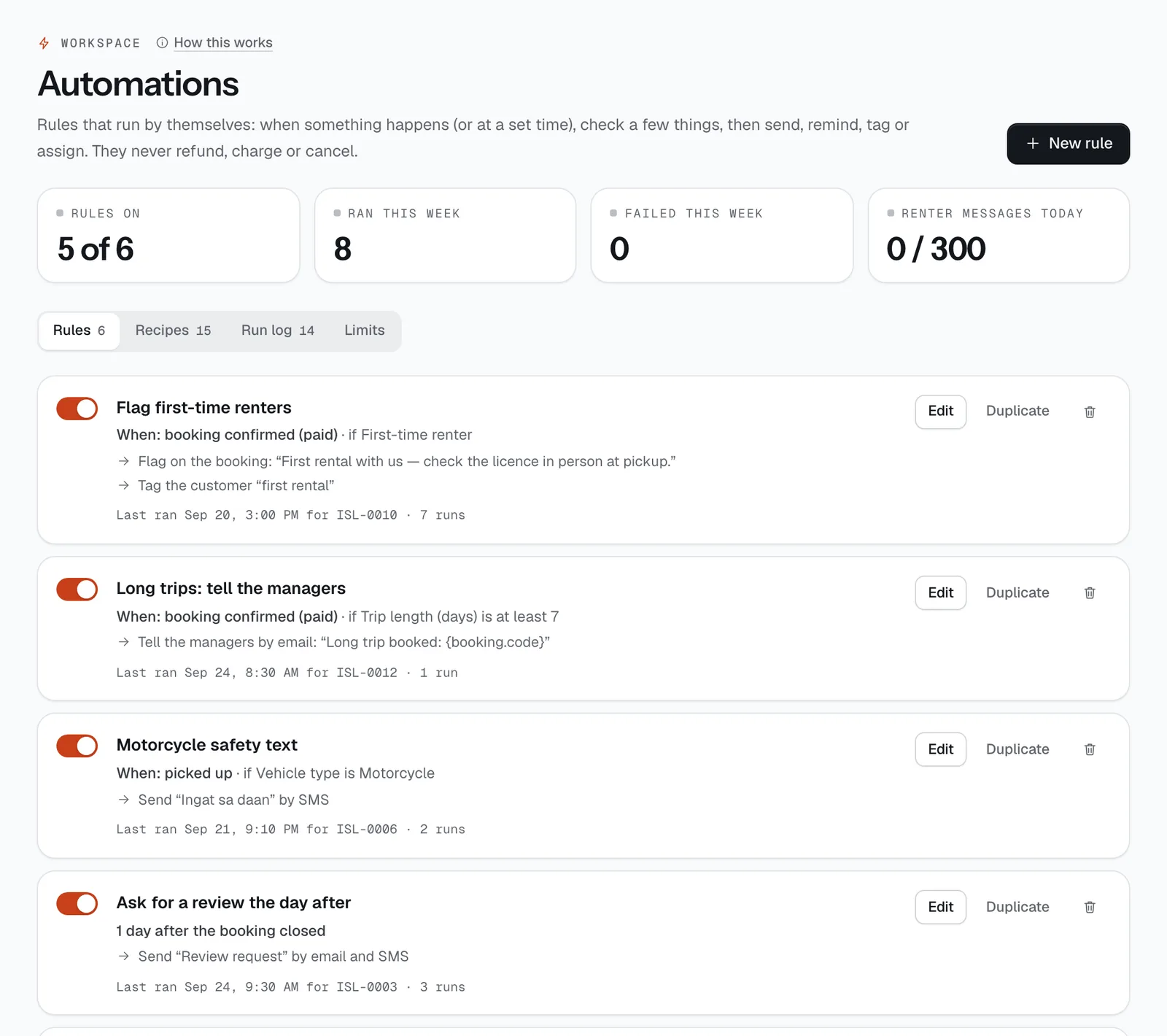
Rules that do routine work for you: “when this happens, if these hold, do this”. Send a reminder, tell the team, create a task, tag a renter, give a returning renter a code — without anyone remembering to.
- Where
- Workspace → Automations
- Who can use it
- Owners and managers.
- Plans
- Every plan.
- Checked
- Sep 25, 2026
What you can do
- Build a rule in three steps — When, If, Then — or describe it in a sentence with Describe it and check the draft.
- Start from a ready-made rule on the Recipes tab: pickup and return reminders, review requests, win-back offers, the owner’s morning summary and more.
- Test a rule against a real booking before turning it on: which conditions pass and exactly what would be sent.
- Turn a rule on or off with its switch, and see everything rules did in the Run log.
- Set Limits: how many renter messages rules may send a day, quiet hours for marketing, and the gap between marketing messages to one renter.
How it works
- A rule can start when something happens (a booking is confirmed, a car is returned), a set time before or after pickup or return, when a task or payment link is late, when a renter or car has been idle, or on a schedule.
- New rules are saved switched off. A rule only acts on what happens after it’s turned on.
- Rules never move money: no refunds, charges or cancellations. A payment link asks only for what’s owed, and a personal code is at most 30% or ₱2,000, used once, by one renter.
- Renter messages respect “no reminders”, your daily limit and quiet hours. A rule doesn’t react to its own actions, and chains of rules stop after two steps.
Still not sure how it works?
Ask a person, in Filipino or English — Mon–Sat, 8:00–20:00 PHT.